Configure notifications for the workspace
Set the name that appears on every notification a customer reads, then find where the email switches live per department and how browser push is turned on.
Notifications leave this system on three roads: the bell in the console, email, and browser push. This page points at where each of the three is configured.
Goal
Customers read notifications carrying the name you meant them to see, and you know which switch on which screen governs each kind of notification.
Before you begin
- The General screen opens for an administrator only.
- The business name as you want a customer to read it on a ticket reply.
- At least one department, because the email switches live on each department — Create a department and add people to it.
- The wording of each notification lives elsewhere: Edit the notification templates that go out.
Steps
Open Administration → General. The card opens under the line "Settings that apply to the whole helpdesk."
Fill in Company name. The hint under the box reads "Your business name, as customers see it."
Pick one of the two choices under Ticket reply author: Agent name so every reply carries the writer's name, or Company name so every reply carries one shared name.
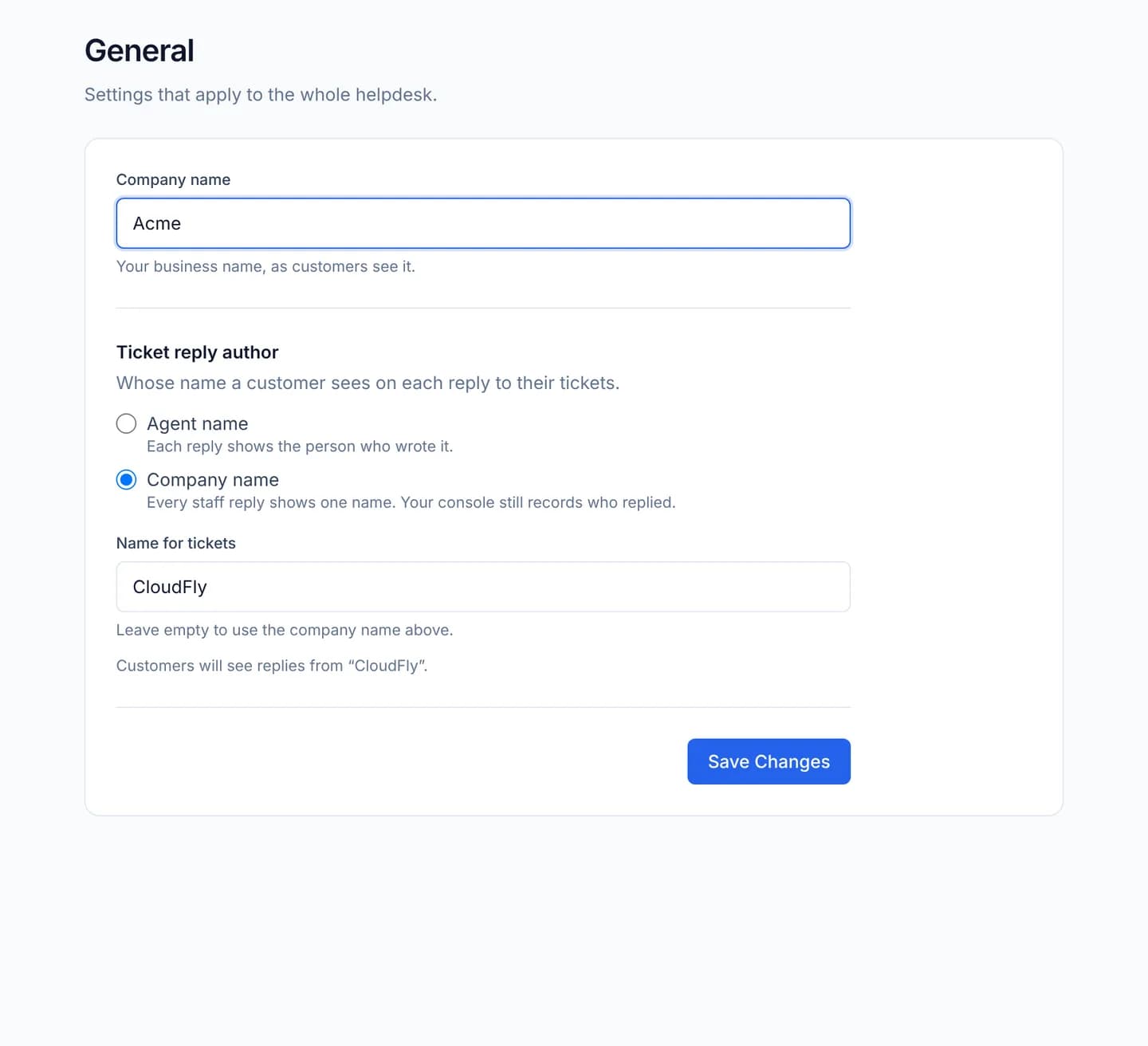
Picking Company name reveals Name for tickets. Leaving it empty falls back to the Company name above.
Press Save Changes. The button is held disabled while Company name mode is picked and both name boxes are empty.
Turn email on or off per department: open Tickets → Departments → pick a department → Settings tab → the Ticket & Notification Settings block.
In that block each switch is one kind of email, grouped by who receives it: staff, the customer, and the CC recipients. Press Save Settings afterwards.
Turn browser push on for your own machine: press the bell at the foot of the navigation, press Enable desktop alerts, and allow it when the browser asks.
Verify
Reload Administration → General: the values you saved are still there. In Company name mode the console prints a preview line underneath telling you which name a customer will read. Then cause a real event and read the mail the customer receives: the sender name matches your choice.
Push is enabled from the browser, not from the console
No switch in the console turns web push on or off for the workspace. It works when the deployment has set a VAPID key pair in the api-engine environment and the console is reached over HTTPS. With either one missing, Enable desktop alerts still responds to the click and no notification ever arrives. That configuration belongs to the deployment runbook, not to the console.
The in-app bell is always on
In-app notifications have no switch and no per-person preferences screen. The bell counts unread items for every account, and the only way to reduce the volume is to turn off email switches on the department concerned.
Troubleshooting
| Symptom | Cause | What to do |
|---|---|---|
| Save Changes stays disabled | Company name mode is picked with no name anywhere | Fill in Company name or Name for tickets |
| Customers still read an agent's name | The setting saved, but that reply went out before the change | Mail already sent cannot be rewritten; only later mail follows the new setting |
| No email leaves at all | The department's switches are off | Turn them back on in the department's Settings tab and press Save Settings |
| Permission granted but no push arrives | The deployment has no VAPID keys, or the console runs over plain HTTP | Ask whoever runs the deployment to check the server configuration |
| Email arrives minutes late | Notifications run through a background queue rather than during the click | See Watch and retry the background job queue |
Next steps
Edit the notification templates that go out
Open the notification templates screen, edit the subject and the HTML body of a template per language, and use only the variables that template receives.
Watch and retry the background job queue
Read the Background Jobs screen to see what is waiting and what has broken, open the error on a single job, and then retry it or cancel it.