Watch and retry the background job queue
Read the Background Jobs screen to see what is waiting and what has broken, open the error on a single job, and then retry it or cancel it.
Email, notifications, webhooks and AI indexing do not run during the click that asks for them — they queue. This page reads that queue and deals with a job that has broken.
Goal
You can answer "has that email gone out yet" with evidence on screen, and you can put a broken job back on the queue.
Before you begin
- This screen is reserved for the administrator role and cannot be granted through a permission group.
- Know which queue your job belongs to; the filter splits the list six ways.
- Redis has to be running, because the queue lives there. Without it nothing leaves the pending state.
- If you are chasing an email that never arrived, read Configure notifications for the workspace first.
Steps
Open Administration → Background Jobs. Four counters sit under the heading, with the job table below them.
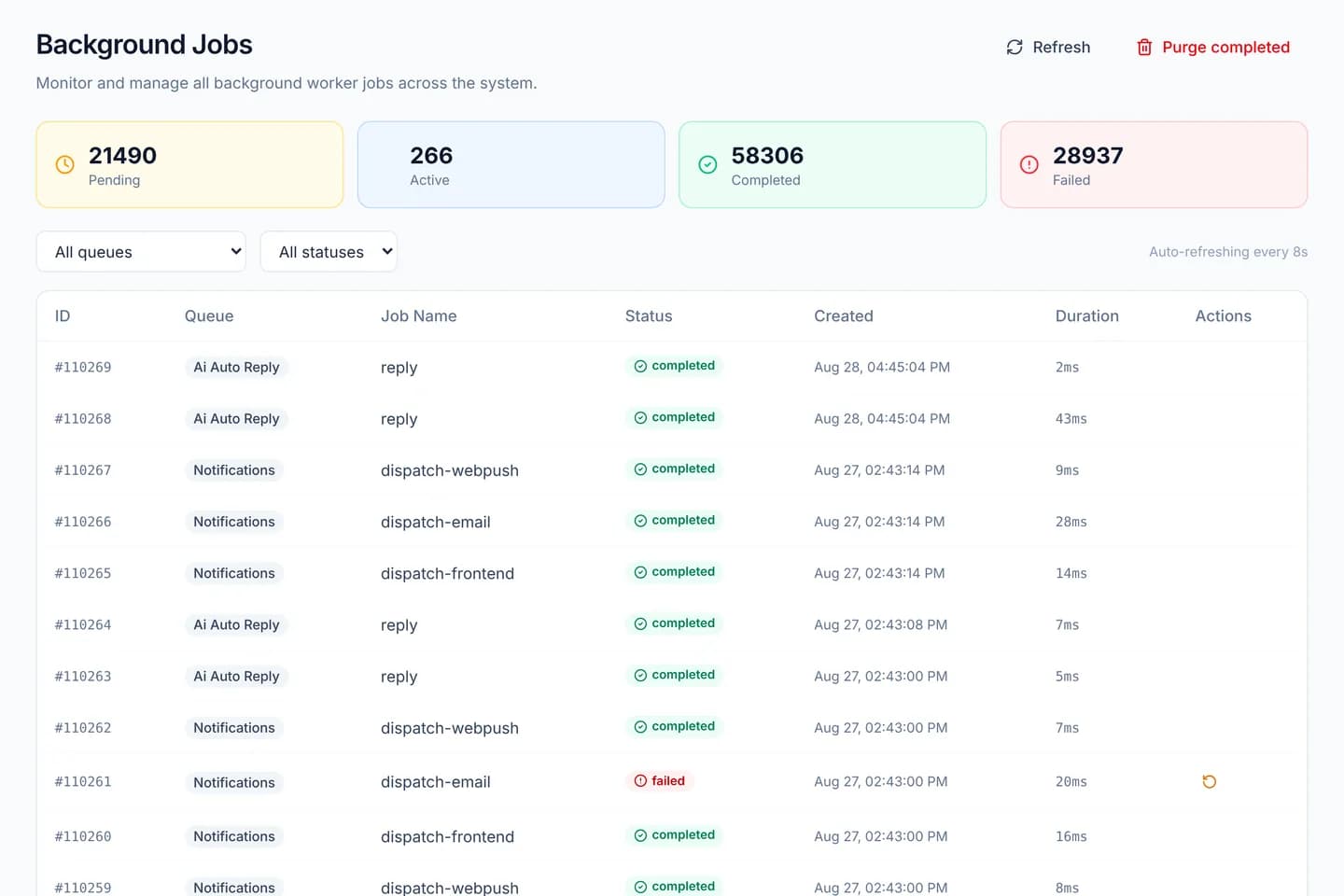
Read the four counters: Pending, Active, Completed and Failed. Those
labels are not translated and read in English in either console language.
Narrow the list with the left-hand select. The six queues are AI Source Processing, AI Auto Reply, Notifications, Email Notifications and
Outbound Webhooks.
Narrow further with the status select on the right. Pick Failed to leave only
the jobs that broke.
Click a row. The Job Detail panel slides in from the right edge with Attempts, Error and Payload on it.
Read Error first. It is the message the worker actually received, and it usually names the cause — a wrong key, an expiry, a refusal from the far end.
Press Retry to put the job back on its queue. The button appears on failed jobs only.
Press Cancel to stop a job that is waiting or running. That button appears on those two states only.
Clear the table with Purge completed at the top right. The dialog states the scope: every completed, failed and cancelled job older than 30 days.
Verify
After Retry, the row leaves the failed state and the Failed counter drops
by one. The page refreshes itself every eight seconds — the line Auto-refreshing
every 8s at the right of the filter row says so — so there is no need to press
Refresh. If the job finished, reopen the detail panel: Attempts has gone
up and the Error block is gone.
The detail panel can hold customer data
The Payload block prints the data the job was handed verbatim, and for a notification job that includes a conversation id and contact details. Think before you screenshot or share your screen on that block.
Administrators only, by design
There is no way to grant access to this screen from the Access Rights screen. The console checks the workspace role on the spot and answers Access Denied to an agent, whatever their groups hold. The detail is in Grant per-feature permissions to a group.
Troubleshooting
| Symptom | Cause | What to do |
|---|---|---|
| The table is completely empty | No job exists yet, or the filters are too narrow | Return both selects to their first option |
Every job sits at Pending | Nothing is consuming the queue | Ask whoever runs the deployment to check the worker process and Redis |
| Retry runs and the job breaks again | The underlying cause is still there | Read Error in the detail panel and fix the configuration before retrying |
| A job runs out of Attempts unfinished | It has used its maximum attempt count | Fix the cause, then press Retry once more |
| The table is full of old rows | Nobody has ever cleared the queue | Press Purge completed; the action cannot be undone |
Next steps
Configure notifications for the workspace
Set the name that appears on every notification a customer reads, then find where the email switches live per department and how browser push is turned on.
Create an AI agent and feed it sources
Set up an AI agent in the console, load knowledge sources into it, try a question against it, then link it to the channel you want it answering on.