Message a colleague directly
Open a private room between staff inside the console, so a question between two people does not have to move to a separate chat application.
Not every question between two agents belongs to one customer's conversation. The console keeps private rooms for those, next to the queue.
Goal
You have a chat room with one or more colleagues, sharing the same timeline and notifications as the rest of the console.
Before you begin
- A signed-in account, and colleagues who already have accounts in the workspace.
- A sense of the boundary: anything about one specific customer belongs in that customer's conversation as an internal message — see Reply to a customer, or write a note.
Steps
Open Direct messages inside the Conversations group in the left column. The rooms you take part in fill the queue column.
Press New direct message at the top of the list. The Start a direct message panel opens with a Search teammates… box.
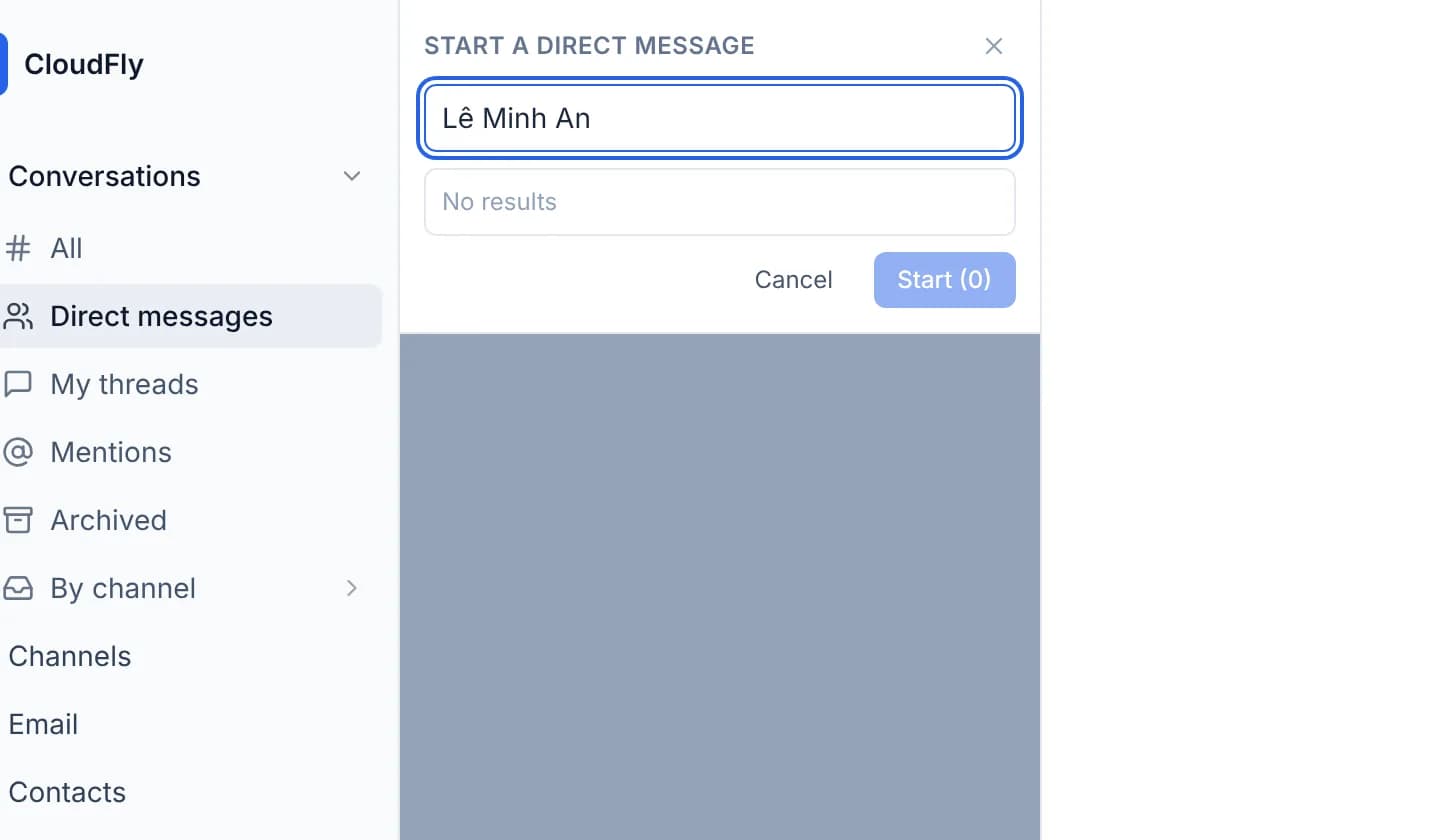
Search by name, select one or more colleagues, then press the Start button carrying the number you selected. The room opens in the timeline.
Write and send as in any conversation. A private room has no composer tabs, because there is no customer at the other end to tell public from internal.
Type @ to tag somebody in the room. Inside a private room the @ picker works
in the composer directly.
Rename the room by clicking its name in the header and typing a new one. That is open to members of the room and to administrators.
A private room is not a customer record
A decision about a customer that lives only in a private room is invisible to whoever picks the customer up next. Anything belonging to one customer should be written as an internal message in that customer's own conversation.
Verify
The new room is listed under Direct messages, and shows up in the list of everyone you selected. Your message appears in the timeline with its delivery state. The Contact Info panel stays closed in a private room, because the room is attached to no customer.
Troubleshooting
| Symptom | Cause | What to do |
|---|---|---|
| The search finds no such colleague | That person has no account in the workspace yet | Start with Invite a colleague into the workspace |
| The start button is dim and does nothing | Nobody is selected yet | Select at least one name and try again |
| The room opens but cannot be muted | Only a follower of the room can silence it | Ask a member to add you to the follower list |
| The room name will not change | Renaming is open to members of the room and to administrators | Ask somebody already in the room to rename it |
Next steps
Reuse canned responses and a signature
Build your own library of replies and insert them with a slash in the composer, then set a signature you can drop at the end of a message.
Supported channels
The four channels you can connect from the CloudFly Helpdesk console — a Facebook Page, a Zalo OA, a Telegram bot, an IMAP/SMTP mailbox — and who sets up what.