Filter the queue and bookmark the view
Narrow the conversation queue down to your share of the work with channel, tab, status and order, then bookmark the URL so the same view opens next time.
A busy workspace has a few hundred open conversations. This page brings the queue down to the part you have to work, and keeps that view for next time.
Goal
The queue shows the group of conversations you want to see, in the order you want, and reopens in that exact state from a bookmark.
Before you begin
- An agent or administrator account signed in to the console.
- At least one channel already feeding the workspace — see Create your first channel.
- Every role can filter and read the queue. Writing needs the per-feature permission, described in Roles and per-feature permissions.
Steps
Open Conversations in the left column, then All. That is the whole queue, narrowed to no channel yet.
Open the By channel group underneath and pick a channel. The address bar
gains ?channel=<INBOX_ID>, and the channel name drops off the individual rows
because the navigation already carries it.
Pick one of the three tabs: Mine, Unassigned, All. The number beside each tab counts the rows currently in the list.
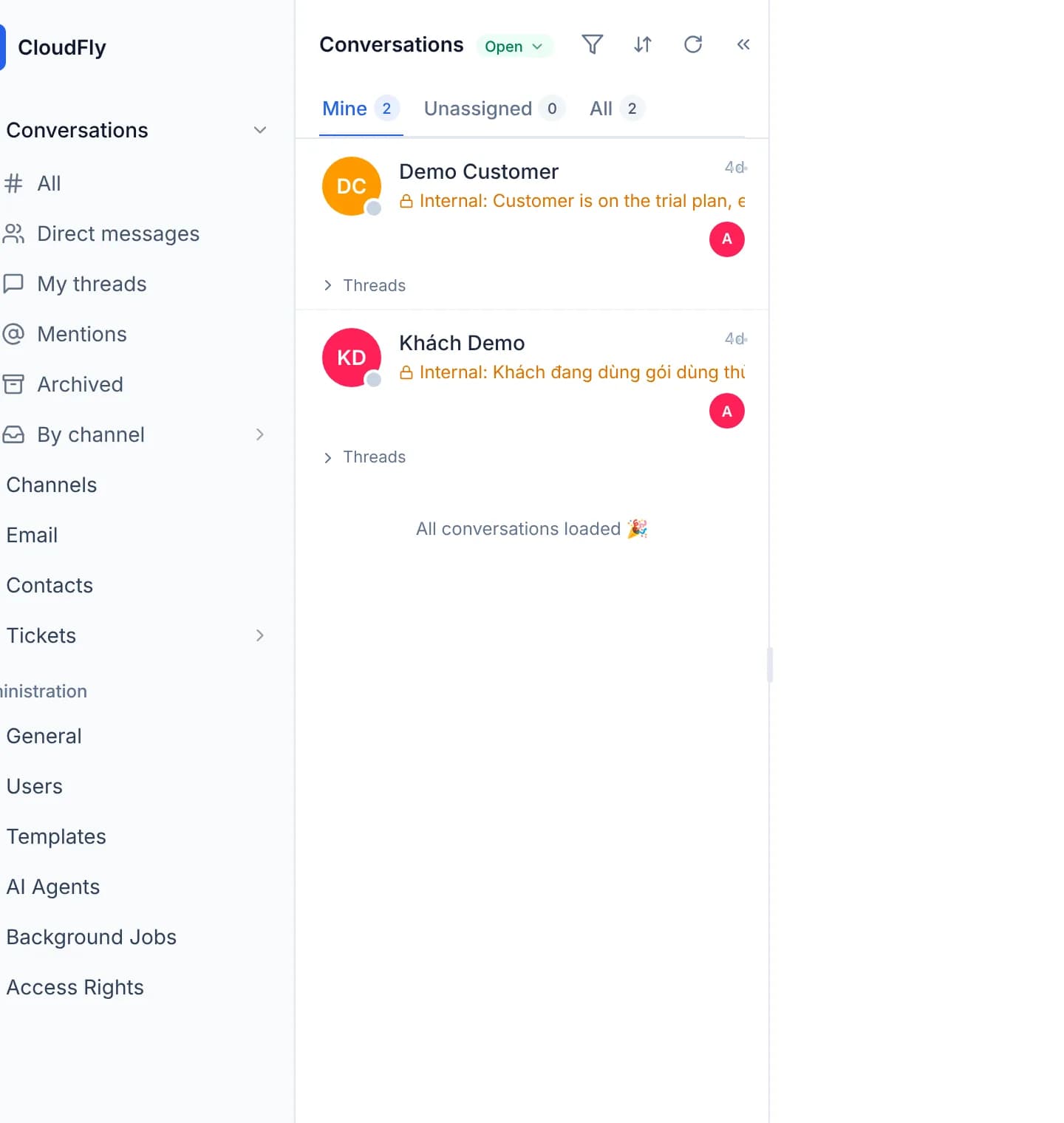
Click the status badge next to the heading to move between Open, Resolved and All. The queue starts on Open, so a conversation you resolve leaves the list.
Click the Sort icon and choose an order: Newest activity, Customer waiting longest or Unread first. The server applies it, so it holds when you scroll for more rows.
For a narrower condition, click Filter, build each rule with Add filter and press Apply. Rules are available for status, assignee, customer, priority, tags and channel.
Bookmark the current URL. Channel, status and order live in the address, so reopening it returns the queue to this view.
A custom filter is not saved
Channel, status and order live in the URL. The rules inside Filter do not: reload the page, or open the console on another machine, and they are gone. The console has nowhere to name a set of rules for reuse. Press Clear all in the filter panel to return to the plain queue.
Verify
The address bar carries what you chose, for example
?channel=<INBOX_ID>&status=all&sort=waiting. Open that URL in a new tab: the
queue comes up already narrowed, with nothing to pick again. The count beside
the active tab matches the number of rows listed under it.
Troubleshooting
| Symptom | Cause | What to do |
|---|---|---|
| The status badge reads From filter and offers no options | The custom filter carries a status rule, and the server no longer reads the other parameter | Remove the status rule inside Filter and the badge works again |
| The queue is empty after picking a channel | That channel has no conversation in the status you are viewing | Switch the badge to All to include resolved ones |
| A conversation you answered drops to the bottom | The order is Customer waiting longest, which counts from the last message the customer could see | Switch back to Newest activity to follow recent movement instead |
| A bookmarked URL comes back without the filter rules | Rules inside Filter are not part of the address | Rebuild the rules, or express a durable view with channel and status |
Next steps
Working the shared inbox
The conversation queue is the screen a support agent looks at all day. This section covers filtering, assigning, replying, internal notes and tidying up.
Assign an owner and teams
Hand a conversation to one accountable person, pull in the teams that share the work and add followers, so no conversation sits there unowned.