Assign an owner and teams
Hand a conversation to one accountable person, pull in the teams that share the work and add followers, so no conversation sits there unowned.
An unassigned conversation is one everybody assumes somebody else is handling. This page hands it to a person, and invites whoever else needs to know.
Goal
The conversation has exactly one accountable owner, carries the teams that share the work, and notifies the people who care about it.
Before you begin
- Write permission on conversations: the
administratorrole, orrole_conversationsat admin level — see Roles and per-feature permissions. - Colleagues who already have accounts in the workspace; if not, start with Invite a colleague into the workspace.
- Teams created by an administrator. A conversation can only pick from the teams that exist.
Steps
Open a conversation from the queue. The bar above the timeline carries the customer name, the assignee control and the followers' avatars.
Click the assignee control — it reads Unassigned while nobody owns the conversation — and pick a colleague. The change is written immediately; there is no save button.
Open the Contact Info panel along the right edge. Its Conversation block holds an Assignee row and a Teams row.
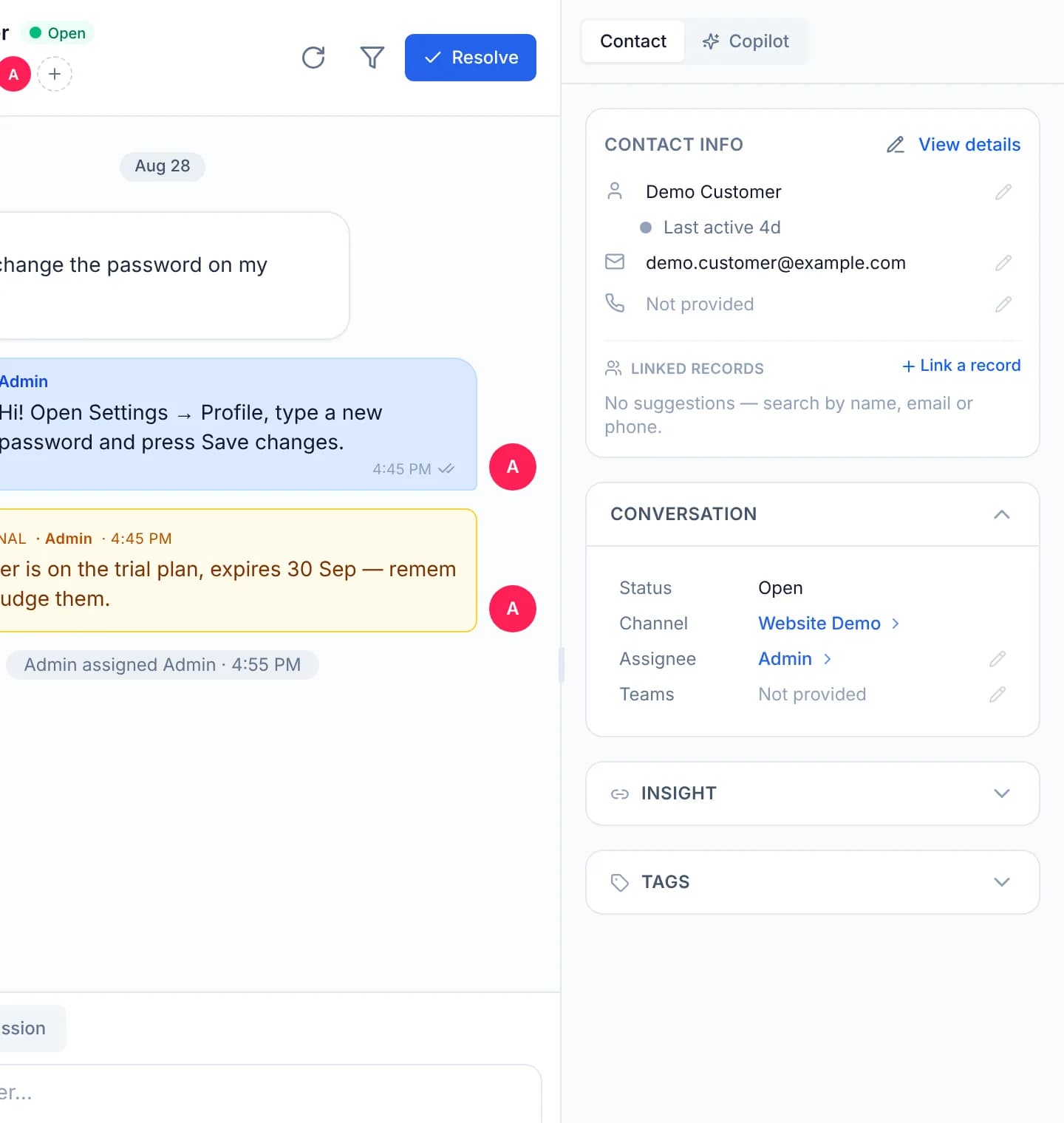
Press the edit button next to Teams, pick one or more teams and press Save. A conversation holds several teams at once, so the team that opened it stays on it when a second team is pulled in.
Add followers from the avatar cluster in the header: click it, then Add followers. A follower receives the conversation's notifications without being accountable for it.
Sending a message in a conversation makes you a follower of it. There is no need to add yourself to that list by hand.
An owner and a team answer different questions
The assignee answers "who is holding this". The teams answer "which parts of the company have a stake in it". Changing one leaves the other alone, and neither of them decides who is allowed to read the conversation.
Verify
The header shows the chosen name in place of Unassigned, and the panel on the right repeats it on the Assignee row. A line recording the assignment appears in the timeline, naming the team as well if you changed teams. Back in the queue, the Mine tab lists any conversation you assigned to yourself.
Troubleshooting
| Symptom | Cause | What to do |
|---|---|---|
| The assignee control shows a name but opens no list | The account has no write permission on conversations, so the control renders read-only | Ask an administrator for the conversations admin role |
| The name snaps back to the previous one | The server refused the request and the console restored the earlier state | Read the error beside the control, reload the page and try again |
| The team you need is missing from the list | No such team exists in the workspace yet | Ask an administrator to create it, then come back |
| The conversation vanishes from the queue after assignment | The queue is on the Mine tab and you handed it to somebody else | Switch to the All tab to see it again |
Next steps
Filter the queue and bookmark the view
Narrow the conversation queue down to your share of the work with channel, tab, status and order, then bookmark the URL so the same view opens next time.
Reply to a customer, or write a note
Use the two composer modes: one sends to the customer, the other stays with the support team, and know exactly where the boundary between them sits.