Embed the widget on your website
Copy the embed snippet from the Configuration tab of a website widget channel, paste it into your pages, list the domain and send a test message.
Once the channel exists, the remaining work is on your own site: two script tags and one declared domain. This page runs from the copy button in the console to the launcher appearing on the page.
Goal
The chat panel appears in the corner of your website, and anything a visitor sends from it lands in the workspace Conversations queue.
Before you begin
- A website widget channel already exists. If not, work through Create your first channel first.
- An account that may edit a channel. An administrator always can; any other role needs a permission group that allows it.
- Somewhere to paste HTML into that site — a theme, a layout file or a tag manager.
- The console address of your workspace, in the form
https://<your-domain>. The snippet is built from that address.
Steps
In the left column press Channels, then open the website widget channel you want to embed.
Open the Configuration tab. The Embed Code section shows the snippet with a copy button in the top-right corner of the code block.
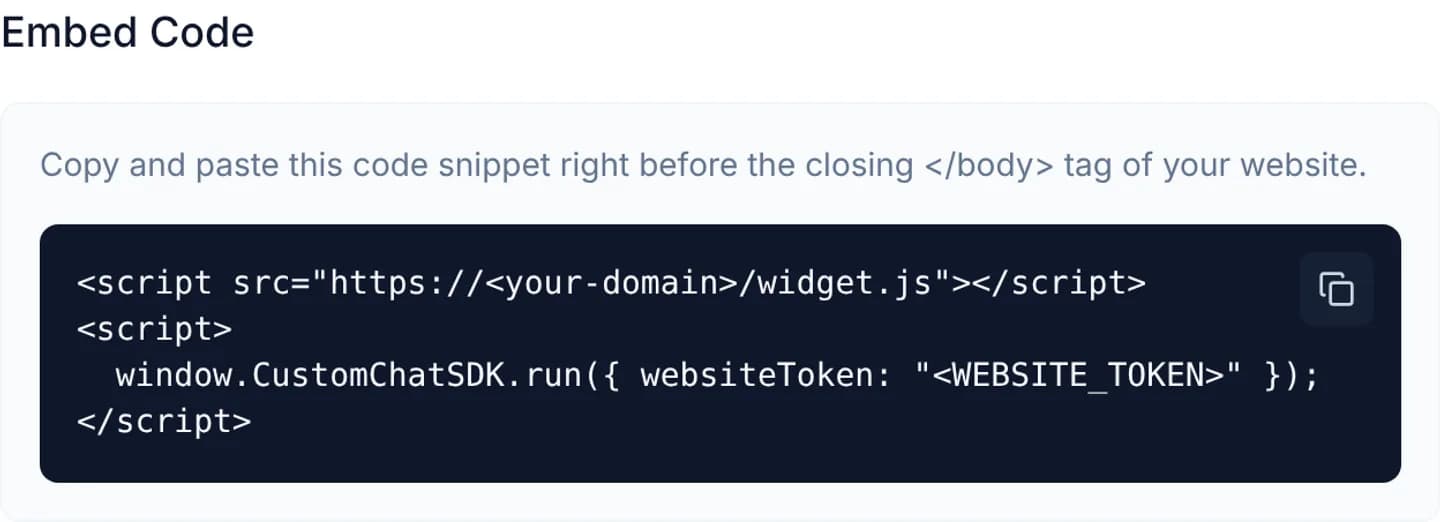
Press the copy button. The console confirms with Copied to clipboard.
Paste the snippet into your website, right before the closing </body> tag, on
every page that should carry the chat panel.
Add baseUrl to the run() call, as in the sample below. The copied snippet
omits it, and without it the panel is loaded from http://localhost:5174.
Back in the Configuration tab, type your site's domain into Target Domain Whitelist and press Add. The domain becomes a small chip under the field.
Press Save Settings, then reload your website.
The finished snippet, with two values to replace:
<script src="https://<your-domain>/widget.js"></script>
<script>
  window.CustomChatSDK.run({
    websiteToken: "<WEBSITE_TOKEN>",
    baseUrl: "https://<your-domain>"
  });
</script>
<WEBSITE_TOKEN> is the string the console already filled in for you inside the
Embed Code block; it names the channel and is public by design.
<your-domain> is the console address — one host serves both widget.js and
the widget document.
run() takes a few more options. position ("left" or "right") overrides
the Widget Position saved in the console, and unreadTitle changes the
notice that flashes in the browser tab title while messages are unread. Leave
position out if you want the console setting to take effect.
Verify
Reload your website and look for the launcher in the bottom corner. Click it, type a test line and send it.
In the console, open Conversations and pick the All tab. The test line must appear as a new conversation, carrying the name of the channel you embedded, within a few seconds.
Troubleshooting
| Symptom | Cause | What to do |
|---|---|---|
| Nothing appears in the corner of the page | The run() call has no baseUrl, so the panel is loaded from http://localhost:5174 | Add baseUrl pointing at the console address |
The browser console prints CustomChatSDK: websiteToken is required | The snippet lost its websiteToken argument | Copy the whole Embed Code block again |
| The launcher appears but opens an empty frame | The running domain is absent from Target Domain Whitelist | Add that exact domain, www variant included, and save |
| It works on staging but not in production | The two live on different domains and only one is listed | List both domains on the same channel |
| The launcher sits on the wrong side | The snippet passes position, which outranks the channel setting | Remove position from the run() call |
Next steps
The chat widget on your website
Four pages that configure the CloudFly Helpdesk chat widget: paste the embed snippet, restyle it, decide how visitors identify themselves, add other channels.
Customize color, position and greeting
Set the brand color, launcher position and shape, avatar, welcome title and the sender name customers see, then switch on the channel greeting.