Customize color, position and greeting
Set the brand color, launcher position and shape, avatar, welcome title and the sender name customers see, then switch on the channel greeting.
Out of the box the panel is blue and the launcher is a round bubble on the right. This page moves it onto your own identity, and sets the first line a visitor reads.
Goal
The launcher and the chat panel on your site carry the color, position, avatar and greeting you chose, instead of the defaults.
Before you begin
- An account that may edit this channel — see Roles and per-feature permissions if you are unsure.
- The hex code of your brand color, for example
#2563EB. - A square image, if you want a logo in place of the initial letter.
- The widget embedded on a page you can check against — see Embed the widget on your website.
Steps
In the left column press Channels, open the website widget channel, then pick the Widget Chat tab.
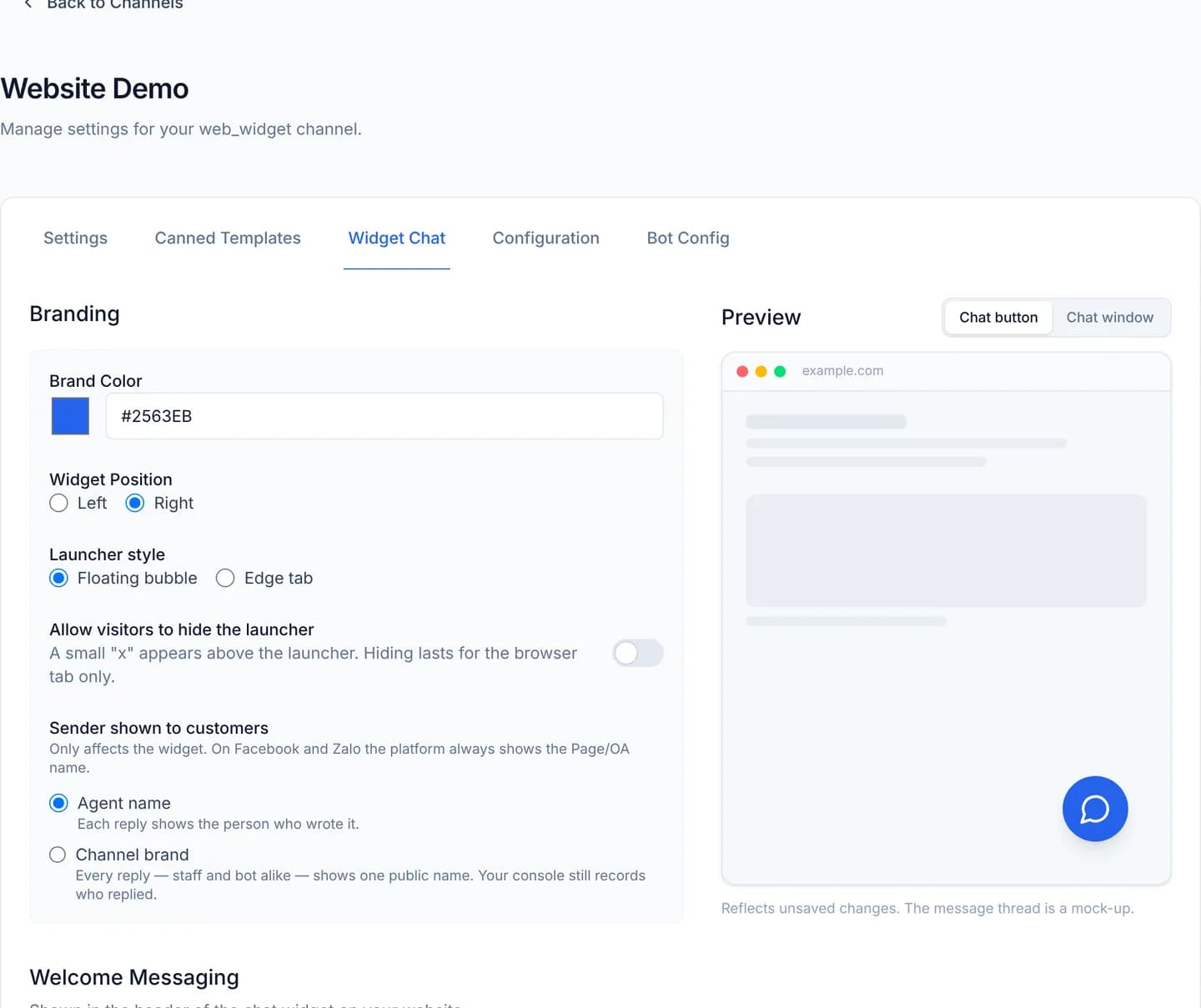
Set Brand Color with the swatch or by typing a hex code, then choose Widget Position: Left or Right.
Choose a Launcher style. Floating bubble is the round button in the bottom corner; Edge tab is a vertical strip against the screen edge, and picking it reveals a Tab label field of up to 24 characters.
Consider Allow visitors to hide the launcher. With it on, a small "x" appears above the launcher, and hiding lasts for that browser tab alone.
In the Welcome Messaging block press Upload image to set the Avatar, then fill in Welcome Title and Welcome Tagline.
Pick a value for Sender shown to customers. Agent name shows whoever wrote each reply; Channel brand puts every reply under one Public name that you type below it.
Check the Preview column on the right. It reflects unsaved changes, and the message thread inside it is a mock-up.
Press Save Settings. The console confirms next to the button.
Move to the Settings tab, turn on Enable Channel Greeting, write the Greeting Message and press Save Settings once more.
The Settings tab also carries Enable CSAT Surveys. Turning it on does show visitors a satisfaction screen after a conversation is resolved, but the product today stores the score nowhere at all and has no CSAT report. Do not treat it as a measure of support quality.
Verify
Reload the website carrying the widget. The launcher must show the color and the shape you chose, on the side you chose.
Open the panel: its header shows the avatar, the Welcome Title and the Welcome Tagline you typed. With the greeting on, your greeting message appears in the thread as soon as a visitor opens the panel.
Troubleshooting
| Symptom | Cause | What to do |
|---|---|---|
| You chose Left and the launcher stays on the right | The embed snippet passes position, which outranks the channel setting | Remove position from the run() call |
| No Tab label field | Floating bubble is selected, and a round bubble has nowhere to put text | Choose Edge tab |
| Save Settings reports an error about the label | The tab label is longer than 24 characters, usually after a paste | Shorten the label to 24 characters |
| The avatar does not appear | The chosen file is not an image | Pick an image file, square for the best fit |
| Visitors still see no greeting | Enable Channel Greeting on the Settings tab is off | Turn it on, write the message and save |
Next steps
Embed the widget on your website
Copy the embed snippet from the Configuration tab of a website widget channel, paste it into your pages, list the domain and send a test message.
Allow anonymous chat, or require a sign-in
Choose between letting visitors chat straight away and requiring a sign-in, learn why the pre-chat form is not an identity, and hand over a verified session.