Handle your first conversation
Answer a conversation from the queue, leave an internal note the customer never sees, take ownership of the thread, then resolve it once the work is done.
A conversation moves through four motions: read it, answer it, record what your team needs, close it. This page performs all four on a real row in your queue.
Goal
The customer has your answer, your team has the note it needs to carry on, and the conversation leaves the open queue once the work is finished.
Before you begin
- At least one conversation waiting. If there is none, send a test line through the channel built in Create your first channel.
- Write access to conversations. A read-only account sees the queue but sends nothing, as described in Roles and per-feature permissions.
- Some idea of where a conversation ends and a ticket starts: Conversations versus tickets.
Steps
Press Conversations in the left column, then pick the Unassigned tab to see the rows nobody has taken.
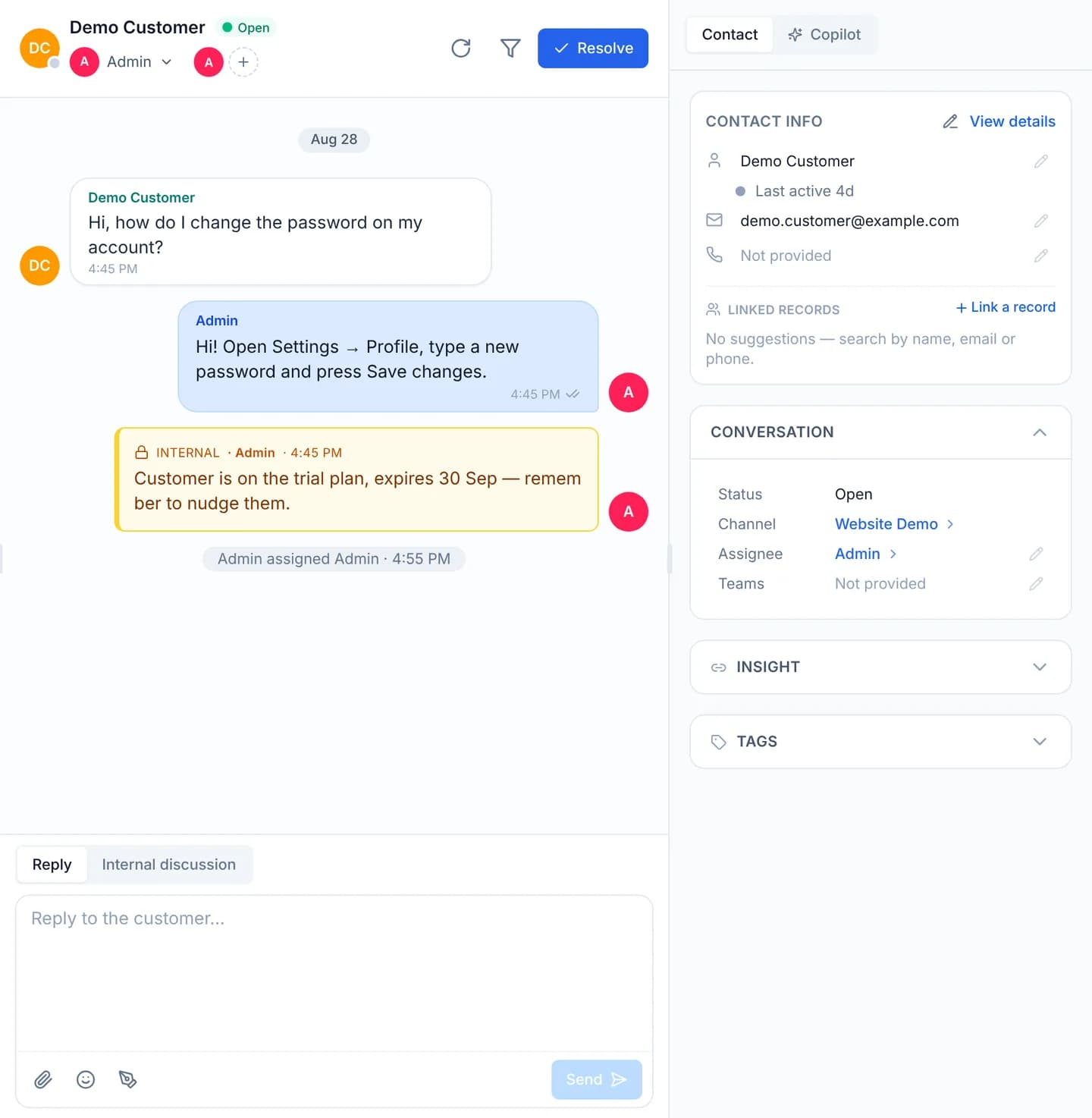
Click a row. The timeline opens in the middle, with the CONTACT INFO panel and the CONVERSATION block along the right edge.
Read the CONVERSATION block before typing: it carries Status, the Channel the customer is writing from, the Assignee and the Teams pulled in so far.
The composer opens on the Reply tab, white, prompting Reply to the customer…. Write the answer and press Send.
Press the Internal discussion tab beside Reply. The composer turns amber and prompts Internal discussion — the customer cannot see this.
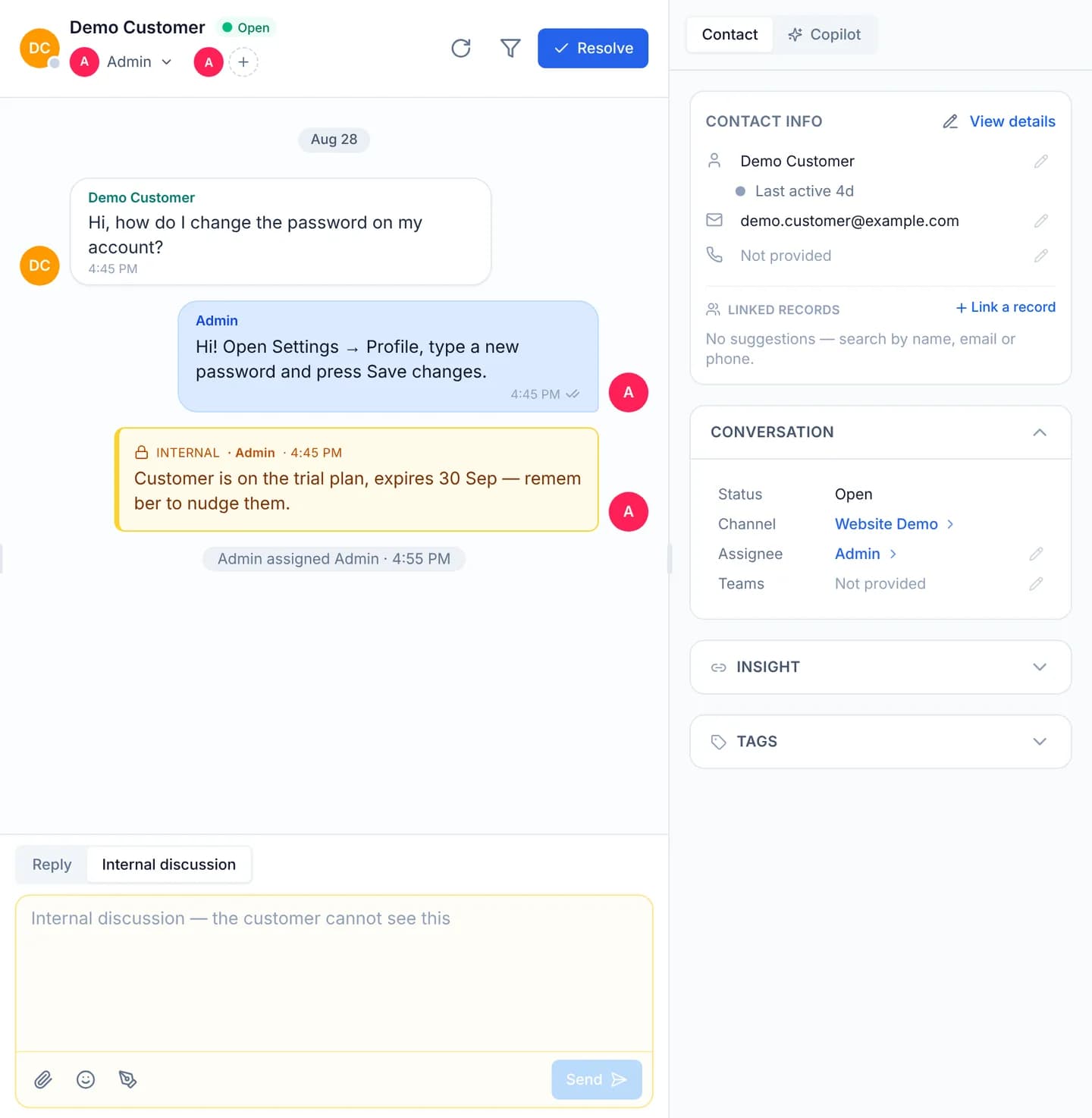
Write what a colleague needs to know and press Send. The note lands as an amber bubble badged INTERNAL, carrying the author's name and the time.
Take the work: in the CONVERSATION block, change Assignee to yourself. A system line records the assignment straight onto the timeline.
When the customer has no further questions, press Resolve at the top of the thread. The status chip beside their name turns to Resolved.
An internal discussion never reaches the customer: it is filtered out of every customer-facing surface, the chat panel and the customer portal alike. The server also refuses a public message that quotes an internal one. That is why quoting an amber bubble locks the composer into internal mode and says so.
Resolving a conversation stops no SLA clock, because a conversation carries none — that clock lives on tickets. Two of its rules get misread. First: a policy with no priority filter applies to low-priority tickets alone, not to every ticket. Second: once a deadline has passed, the ticket stays failed for good, and finishing late does not restore it to satisfied.
Verify
Your answer sits on the right of the timeline, under your name, with a delivery marker in the corner of the bubble. The note sits under it in an amber bubble with a padlock and the INTERNAL badge — two colors is the fastest way to see whether you typed into the wrong box.
After resolving, return to the queue and press the Mine tab: the thread you handled is no longer among the open rows.
Troubleshooting
| Symptom | Cause | What to do |
|---|---|---|
| The composer is locked to internal mode | You are quoting an internal message | Drop the quote before switching to the Reply tab |
| No composer at all, only a timeline | The account is read-only on conversations | Ask an administrator for write access to conversations |
| A message fails and stalls in place | The outside channel refused it or lost its connection | Read the server's reason under the message, then retry or discard |
| A conversation was resolved too early | Resolve was pressed before the customer replied | Reopen it from the status filter at the top of the queue |
Next steps
Create your first channel
Build your first channel as a website widget: name it, list the domains allowed to embed it, pick the display options, then collect the embed snippet.
Invite a colleague into the workspace
Create an account for a colleague in CloudFly Helpdesk: fill in the profile, pick the workspace role, set a starting password, then place them in groups.