Set working hours, shifts and leave days
Build a working calendar in the CloudFly Helpdesk console with weekday shifts and one-off leave periods, so the SLA clock counts business hours only.
A working calendar is the window in which the SLA clock may run. Outside it, the deadline holds still. This page builds a calendar and attaches it to an SLA policy.
Goal
The workspace holds a calendar that describes the hours your team really works, leave periods included, and an SLA policy computing its deadlines against it.
Before you begin
- The administrator role; any other account opening this screen receives the line Administrator only and nothing else.
- The real cover hours of your team, day by day.
- The working calendar screen has no Vietnamese build: the English labels in bold below are what the console prints whichever language you run it in.
Steps
Open Tickets → Working Calendars and press New calendar.
Fill Name with something that describes the window, such as
Business Hours (Mon–Fri). Leave Timezone at UTC until you have read the
warning below.
The Working hours block opens with five rows, Monday to Friday, From
9 and To 17. Edit each row to match your cover.
Hours accept decimals in quarter steps: 17.5 means 17:30. From has to be
smaller than To on the same row.
Press Add shift to add a row, or the bin icon to drop one. A lunch break becomes two rows on the same day.
In Leaves (optional), press Add leave, fill Leave name, then set Starts and Ends. That period is removed from every shift it covers.
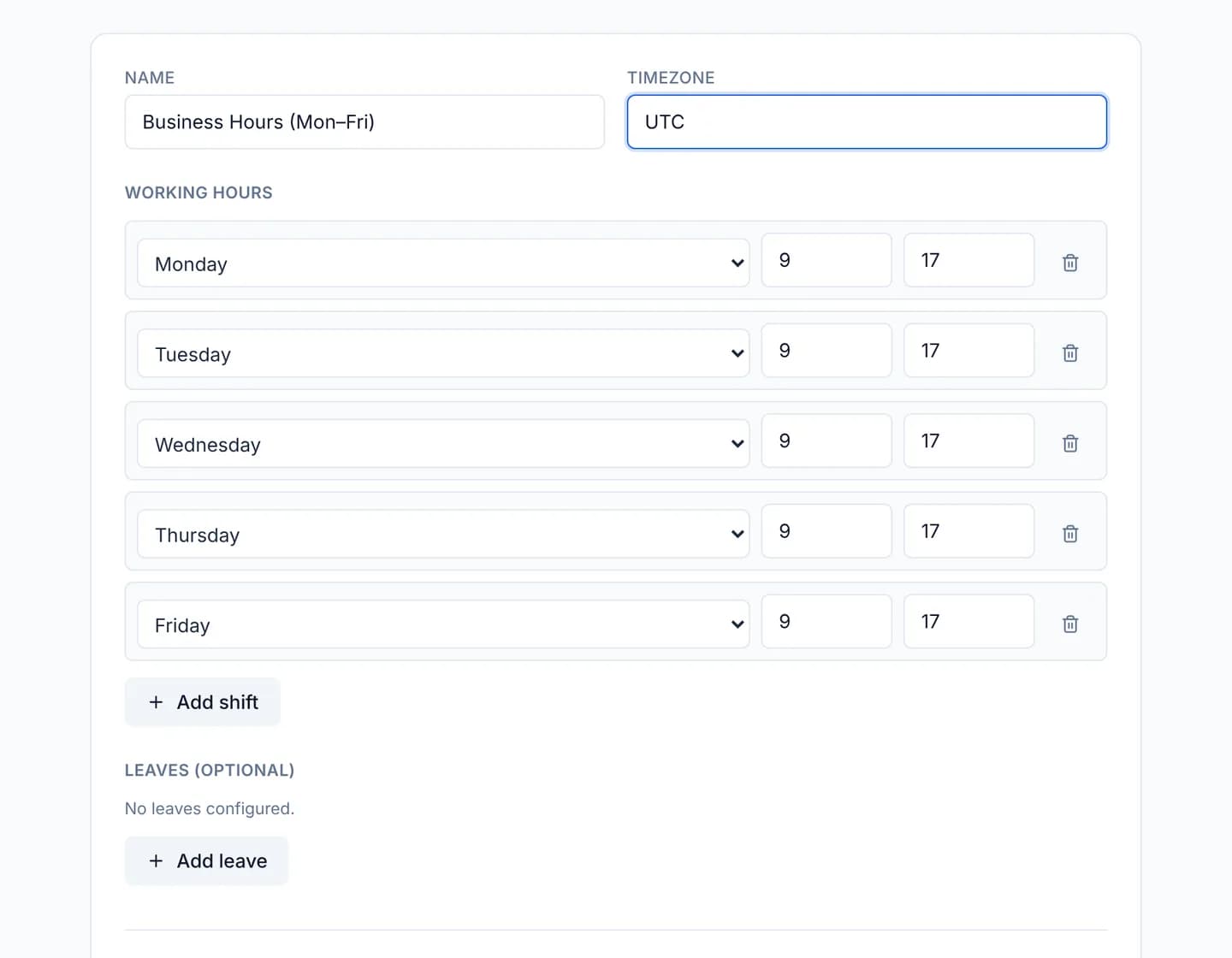
Press Create calendar. The console returns to the calendar list.
Attach it to a policy: open Tickets → SLA Policies, edit a policy and pick the new calendar under Working calendar.
Verify
In the Working calendars list, the new row prints Name, Timezone
and a summary in the Schedule column reading
5 shift(s) across Mon, Tue, Wed, Thu, Fri. The shift count in that sentence
matches the number of rows you entered.
Create a test ticket on the team that uses the policy. Open its card drawer on the Kanban board: the Deadline falls inside a covered window, not overnight and not inside a leave period.
Shift hours are read as UTC. The Timezone field is stored and shown,
but the deadline arithmetic never reads it. A team working 09:00–18:00 in
Vietnam (UTC+7) has to enter From 2 and To 11.
Troubleshooting
| Symptom | Cause | What to do |
|---|---|---|
| Deadlines are off by exactly the offset of your timezone | Shifts are counted in UTC, not against the Timezone box | Convert your cover hours to UTC and enter them again |
| "Every shift must have hourFrom < hourTo." | A row has From at or after To, usually an overnight shift | Split it into two rows: 22–24 today and 0–6 the next day |
| Deleting fails with "Could not delete calendar — it may be in use by an SLA policy." | An SLA policy still points at that calendar | Move the policy to another calendar, then delete |
| A ticket receives no deadline at all | The attached calendar holds no shift rows | Reopen the calendar and add at least one shift |
| A leave period changes nothing | Starts and Ends do not overlap any shift | Check both instants, remembering they are UTC too |
Next steps
Set an SLA policy for a team
Create an SLA policy in the CloudFly Helpdesk console: pick the team, the priority, the target hours, the working calendar and the stage that counts as reached.
Read and send email in the console
The Email section is your own mail reader inside the console: three panes for folders, the message list and the message itself, plus a compose button.