Set an SLA policy for a team
Create an SLA policy in the CloudFly Helpdesk console: pick the team, the priority, the target hours, the working calendar and the stage that counts as reached.
An SLA policy attaches a deadline to the tickets that match its criteria, then follows each one until it is met or breached. This page creates a policy and spells out the two rules that surprise people.
Goal
The team runs one live SLA policy: matching tickets carry a deadline computed against a working calendar, and their met-or-breached status shows on the Kanban card.
Before you begin
- The administrator role. Any other account opening this screen sees only Administrator only.
- A team whose columns exist, and a clear idea of which one means "met" — see Configure the columns of a team's board.
- A usable working calendar: Set working hours, shifts and leave days.
- The policy form itself carries no translations. The bold labels below are the English strings the console prints in either language.
Steps
Open Tickets → SLA Policies and press New policy.
Fill Title with a name your operations people will recognise. Description (optional) is an internal note and never reaches a customer.
Pick the Team. The field locks once the policy is saved, so a wrong team means creating a second policy.
Pick exactly one level in Priority filter. Leaving it empty is a trap — read the troubleshooting table before you decide.
Fill Target (business hours) — hours of work, not hours on the wall clock. The field accepts quarter-hour steps.
Pick the Working calendar. The clock only runs inside the shifts of that calendar.
Pick the Reach stage — the column a ticket has to arrive in for the commitment to count as met.
Tick the columns under Excluded stages (clock pauses while ticket sits here). Time a ticket spends in those columns is added back to the deadline.
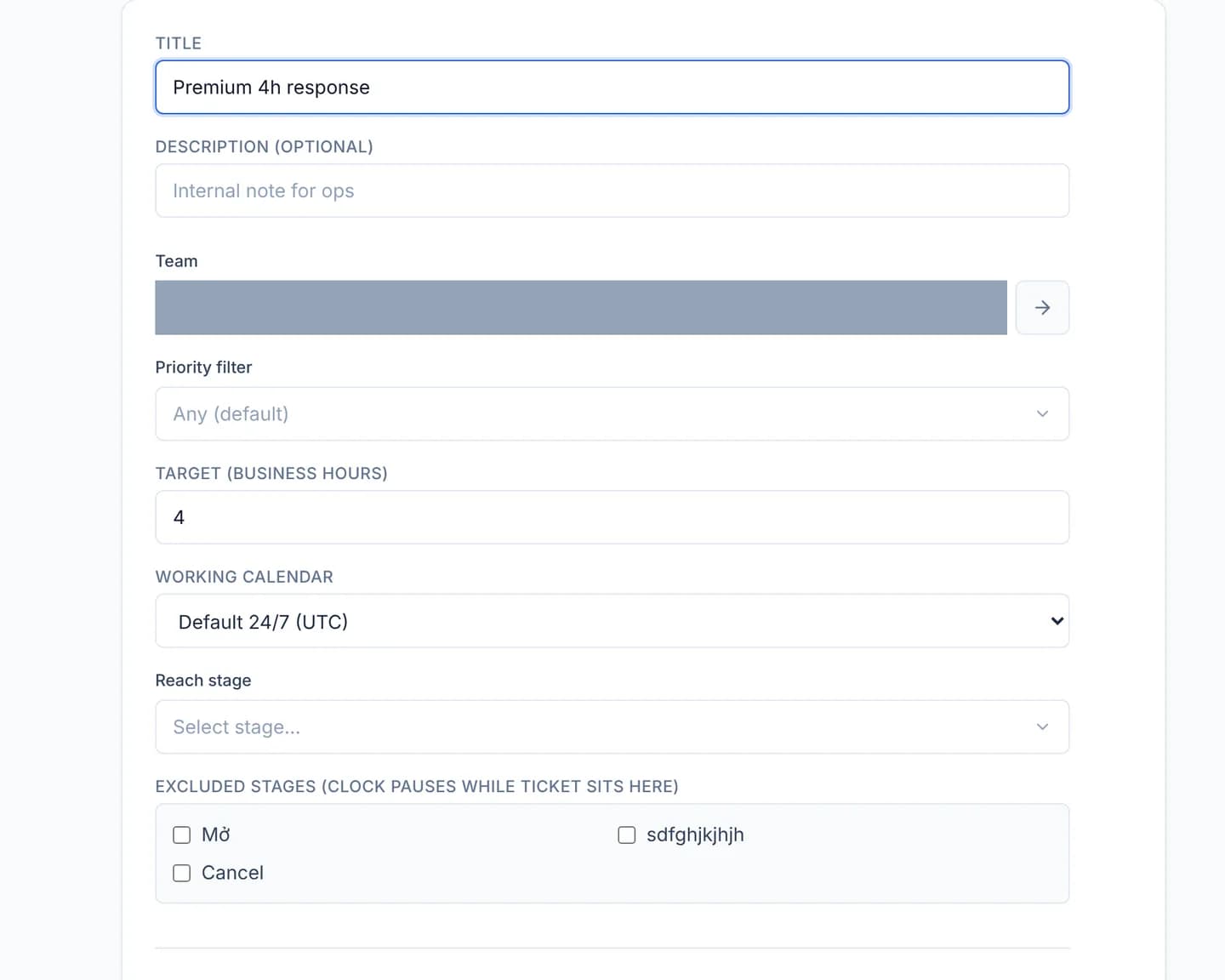
Press Create policy. The console returns to the list and re-evaluates every ticket on the team against the new policy.
Verify
On SLA Policies the new policy sits under its team's name. The Priority
column prints the level you picked, Target prints the hours with an h,
and Reach stage prints the column name.
Open the team's Kanban board: matching tickets now carry an SLA badge, and the card drawer shows a Deadline.
The deadline always counts from the moment the ticket was created, even when the policy was added later. A new policy can therefore mark a handful of older tickets as breached the instant it is saved.
Troubleshooting
| Symptom | Cause | What to do |
|---|---|---|
| The policy matches nothing except Low tickets | The zero-star default: a policy with no Priority filter matches only low priority tickets, not every ticket. The box reads Any (default) while the policy list prints low (default) | Edit the policy and pick the level you meant; to cover all four levels, create four policies |
| A ticket reached the Reach stage and still reads SLA breached | failed is permanent: once the deadline has passed, arriving at the stage afterwards does not turn it back to satisfied | Nothing on that ticket will change it. The breach stays in the SLA Report, which is the intent |
| Target is 4 hours yet the deadline lands two days out | The clock only runs inside the shifts of the chosen Working calendar | Check the shifts on the calendar the policy uses |
| There is no field for a customer filter or a tag filter | The page description mentions customer filters, but the console form offers Team and Priority filter only | Work with those two; the rest has no input on the form |
| Deleting a policy also erased the SLA status on existing tickets | Deleting a policy removes the statuses it tracked | Edit the policy instead of deleting it when the numbers matter |
Next steps
Configure the columns of a team's board
Add, rename and order the stages on a department's Kanban board, mark the column that closes the flow, and choose the stage new tickets land in.
Set working hours, shifts and leave days
Build a working calendar in the CloudFly Helpdesk console with weekday shifts and one-off leave periods, so the SLA clock counts business hours only.