Track tickets on your team's Kanban board
Open a department's Kanban board, read the columns and the SLA badge on each card, then drag a card into another stage to move the ticket along.
The Kanban board shows every ticket of one department by stage rather than as a list. This page reads the board and moves a ticket across it.
Goal
You can open your team's board, read every number on a column header and on a card, and move one ticket into the next stage.
Before you begin
- Any operator account can read the board. Dragging needs write access to tickets: the administrator role, or Tickets role set to Admin (can write) — see Roles and per-feature permissions.
- The department needs at least two columns. If it has none, work through Configure the columns of a team's board first.
- At least one ticket carrying a stage; a ticket with no stage is absent from the board.
Steps
Open Tickets → Kanban. The list shows one tile per department, with that department's address under its name.
Click your team's tile. The board opens, and the top bar carries the ticket count and the stage count.
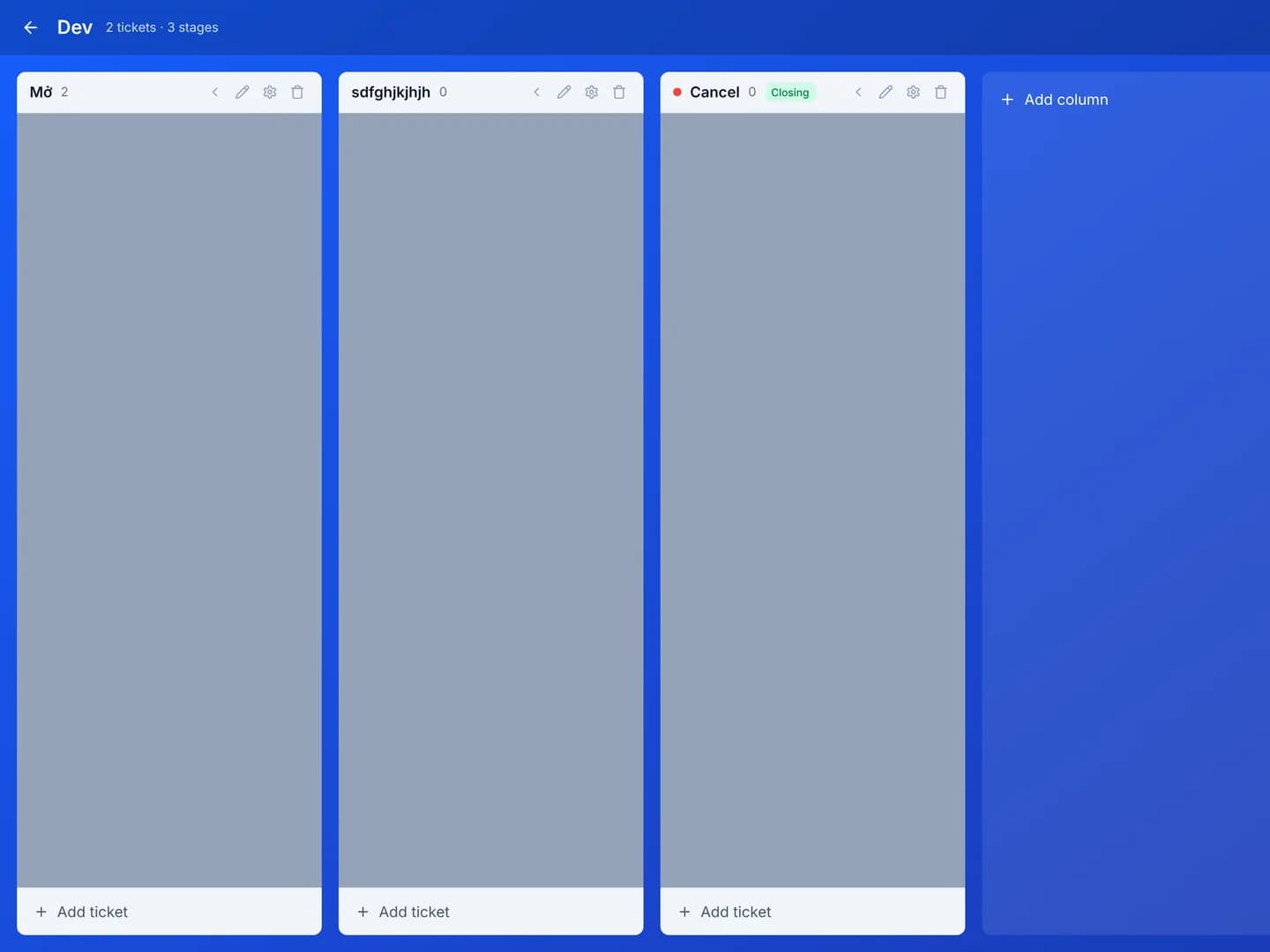
Read each column header: a colour dot, the stage name, then the number of tickets sitting in it. The final column of the flow also carries a Closing label.
A column with a WIP limit prints its count as 5 / 4 and turns red once it is
over. That is a colour warning; the console still accepts more cards.
Read a card: its reference, its priority, the update date, the reply count and the attachment count. The SLA badge reads Overdue, SLA breached, SLA met or the time left.
Drag a card into another column. The console stores the new stage and records the transition.
Click a card to open its detail drawer. The drawer carries an SLA block with the Deadline, and a Stage history block listing every leg the ticket has travelled.
Add a ticket straight onto a column with Add ticket: type a Ticket title… and pick a contact. The save button turns on once both are there.
Press the left arrow on a column header to Fold column. A folded column still accepts cards dragged onto it.
Verify
The moment you drop the card, the counts on both column headers move: one down on the old column, one up on the new one. Reload the page and the card is still in its new column.
Open the drawer of that same card: Stage history carries an extra row for the current stage, marked present.
Troubleshooting
| Symptom | Cause | What to do |
|---|---|---|
| Cards will not drag, though the board reads fine | The account sits at read-only on tickets | Have an administrator raise Tickets role to Admin (can write) |
| A card carries no SLA badge at all | No SLA policy matches that ticket | See Set an SLA policy for a team |
| The drawer reads "No SLA policies attached." | Same cause, spelled out in a sentence | As above |
| The save button under Add ticket stays off | The title is empty, or no contact with a portal account was picked | Fill both, or use the full creation form |
| The board is empty although the department has tickets | Those tickets carry no stage | Give the department a default stage, then reopen each ticket |
Next steps
Create a ticket and answer the customer
Open a new ticket in the CloudFly Helpdesk console, answer the customer on its timeline, leave an internal note for your team, then resolve the ticket.
Configure the columns of a team's board
Add, rename and order the stages on a department's Kanban board, mark the column that closes the flow, and choose the stage new tickets land in.