Connect a Facebook Page
Attach a Facebook Page to your workspace with the console's sign-in button, pick the Page from the list, then verify it with Facebook's own answer.
Once a Page is connected, a Messenger message sent to it lands straight in the conversation queue. This page walks the console side of that connection.
Goal
A working Facebook channel in the workspace: customer messages from Messenger reach the queue, and a reply written in the console reaches Messenger.
Before you begin
- Write access to channels — see Roles and per-feature permissions.
- A Facebook account that administers the Page you want to connect.
- An installation that already declared its Meta app. If the Facebook tile errors the moment you press it, that work is outstanding.
- A Page with no channel yet. A connected Page reads Already connected and cannot be picked again.
Registering the Meta app, pointing its webhook and declaring the OAuth
redirect address belong to whoever deploys the system, once for the whole
installation. You neither need nor want a Meta app of your own. Those values
live in the FACEBOOK_APP_ID, FACEBOOK_APP_SECRET and
FACEBOOK_VERIFY_TOKEN environment variables, described in the
installation's README.md.
Steps
In the left column press Channels, then Add Channel at the top right.
Press the Facebook tile on the Choose a channel screen.
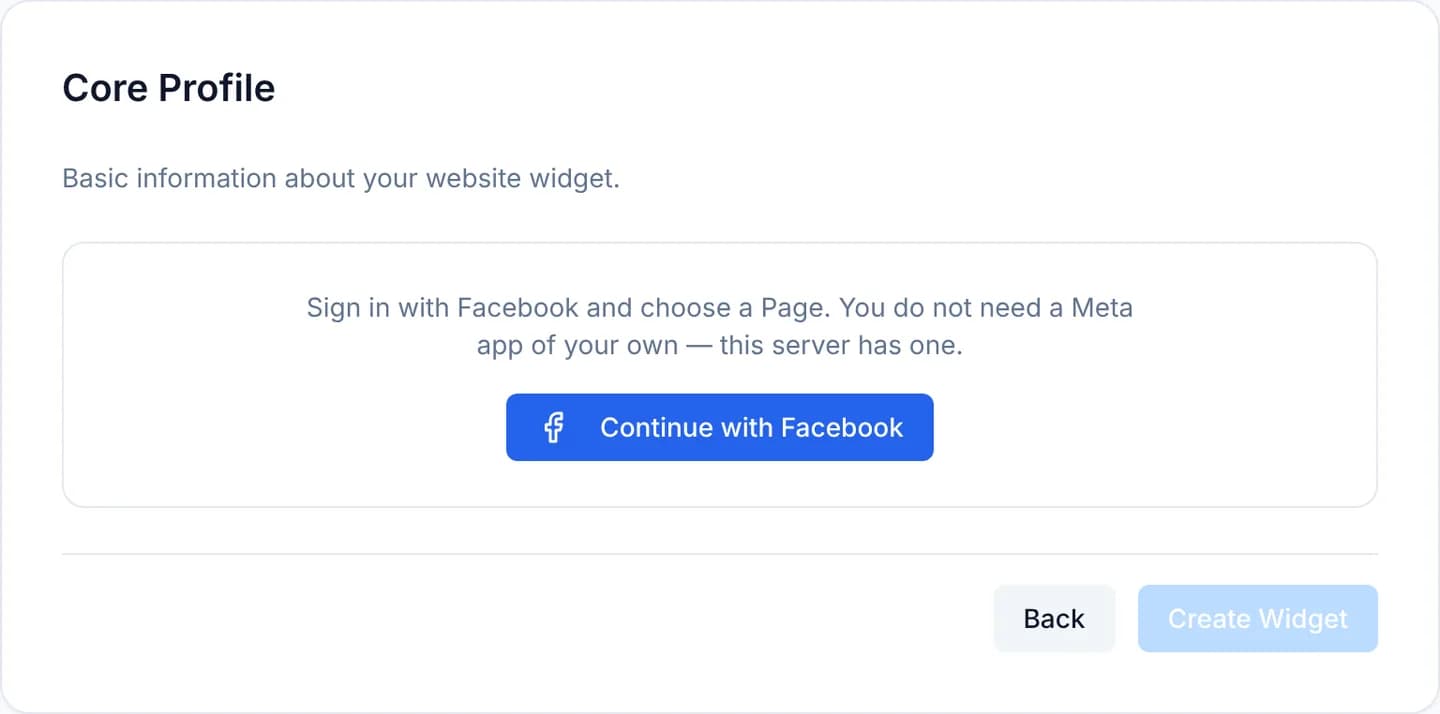
Press Continue with Facebook. The browser leaves the console for Facebook's sign-in page, which belongs to a third party.
Sign in with the account that administers the Page, tick the Page you want and confirm on Facebook's screen.
Facebook returns you to the console at the Core Profile step, now carrying a Choose a Page list.
Pick the Page. The console prefills Channel Name from the Page name; change it if you want a different label in the queue.
Turn on Enable Channel Greeting if the Page should greet customers, then write the greeting.
Press Create Widget. The button keeps that label for every channel type, Facebook included.
The Success! screen appears with nothing to copy. Press Go to Channels.
Verify
The Channels list gains a row named after the Page. Open it and select the Messenger Configuration tab: a green Connected badge sits beside the Page name.
Press Check connection. That answer comes from Facebook rather than from the rows we stored. Both Page token accepted by Facebook and Page subscribed to this server have to read Yes.
Finally, send the Page a message from Messenger. It has to appear in the Conversations queue within a few seconds.
Troubleshooting
| Symptom | Cause | What to do |
|---|---|---|
| Continue with Facebook reports the app is not configured | The installation has no FACEBOOK_APP_ID | Ask whoever deploys it to set the variable and recreate the container |
| Facebook says the URL is not in the app's domains | The OAuth redirect address was never declared on the app dashboard | That belongs to the deployer; the App Domains field does not stand in for it |
| The Page you want is greyed out and reads Already connected | The Page already has a channel in this workspace | Open the existing channel and use Reconnect with Facebook |
| Creating the channel fails with a sentence from Meta | Facebook refused to subscribe the Page to this server | Connect again and leave every permission ticked on the consent screen |
| Connected, yet nothing arrives | The app-level webhook fields are off, or the webhook address is stale | Press Check connection; two Yes answers put the fault in the app |
| Messages stop after about an hour | The Page was wired by hand on a short-lived token | Open the channel and press Reconnect with Facebook |
The Page token never reaches the browser, and there is no field to paste one into. To change permissions or restore a connection, take the Reconnect with Facebook route rather than editing anything by hand.
Next steps
Supported channels
The four channels you can connect from the CloudFly Helpdesk console — a Facebook Page, a Zalo OA, a Telegram bot, an IMAP/SMTP mailbox — and who sets up what.
Connect a Zalo Official Account
Attach a Zalo Official Account to your workspace: declare the app, paste the webhook, authorise the token pair, and learn the messaging window in advance.