Connect a Telegram bot
Create a bot with @BotFather, paste its token into the console, then check the webhook the server registers on your behalf for the new Telegram channel.
Telegram is the third-party channel with the fewest moving parts: one token from @BotFather is the whole declaration, and the server handles the webhook.
Goal
A Telegram channel that receives what customers send the bot, plus a link you can hand out so they can open a chat with it.
Before you begin
- Permission to write channels, spelled out in Roles and per-feature permissions.
- A Telegram account to talk to @BotFather, which is a third-party service.
- A public server address Telegram can actually reach. That belongs to whoever deploys the system — see the callout below.
Telegram accepts HTTPS on ports 443, 80, 88 or 8443 only, and will not
register a localhost address. That address lives in the API_PUBLIC_URL
environment variable, an operations concern described in the installation's
README.md. On a development machine, put a public tunnel in front of it.
Steps
Open the Telegram app, message @BotFather and send the /newbot command.
Give the bot a display name and a username. BotFather answers with a token
shaped like 123456789:AAE...; treat it as a password.
Back in the console, press Channels in the left column, press Add Channel, then pick the Telegram tile.
Fill in Channel Name and paste the token into Bot token.
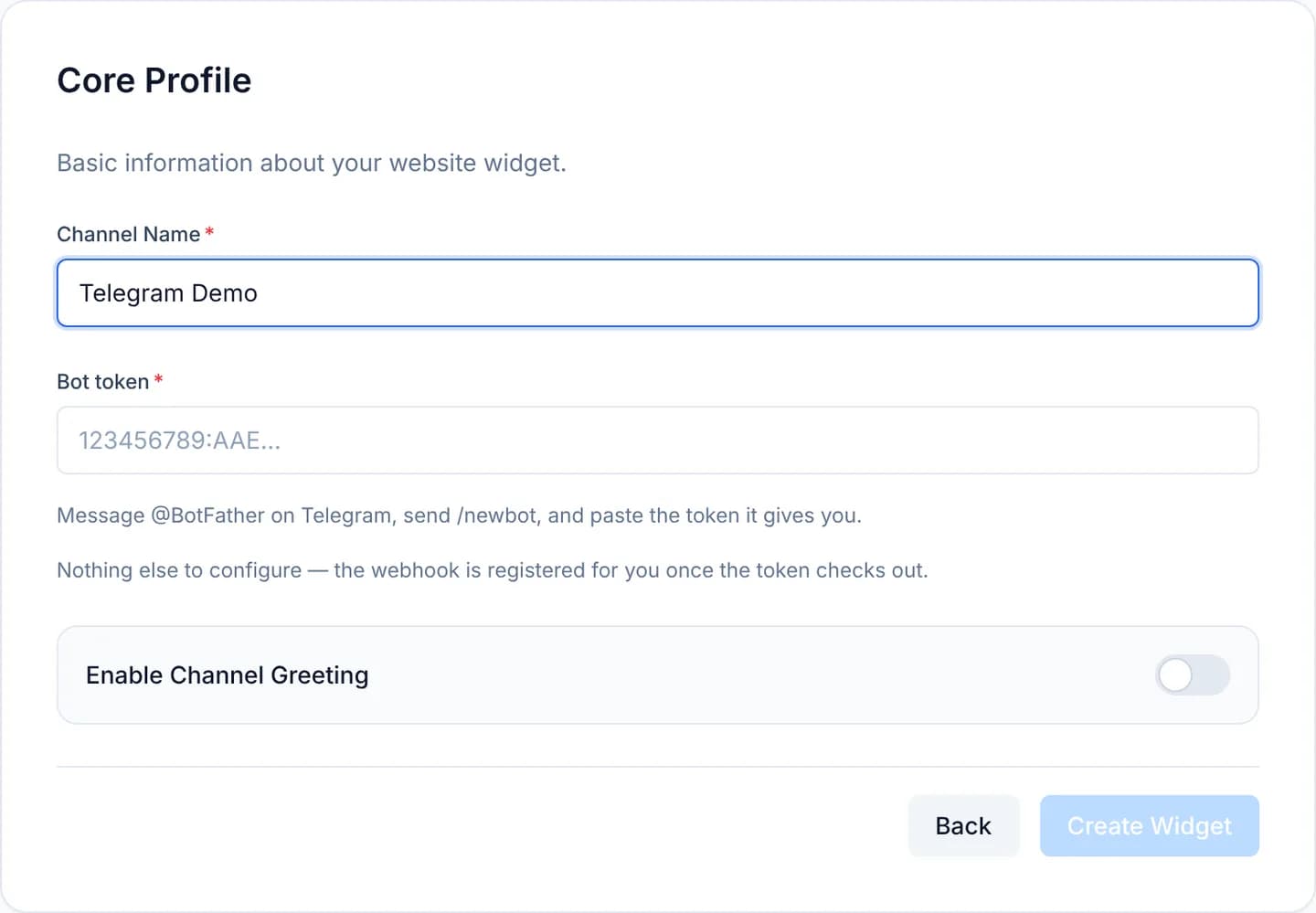
Turn on Enable Channel Greeting if the bot should greet customers, then press Create Widget.
The Success! screen carries a Share with customers block with a t.me
link and a QR code. Keep the link: Telegram has no embed snippet.
Press Go to Channels, open the new channel and select the Telegram Configuration tab.
Read the badge under Webhook. Registered means Telegram has accepted the server's address.
Whenever the server's public address changes, come back here and press Register webhook again.
Verify
The Telegram Configuration tab shows the Bot username and Bot ID BotFather issued, and the webhook badge reads Registered with the time it was registered.
Open the bot's t.me link on another device, start the chat and send a line.
It has to reach the Conversations queue within a few seconds, and a reply
written in the console has to arrive back in Telegram.
Troubleshooting
| Symptom | Cause | What to do |
|---|---|---|
| Creating the channel fails immediately | The token is wrong, carries stray spaces, or was revoked | Ask @BotFather for a new token and paste it again |
| The webhook badge reads Failed with a sentence from Telegram | The public address is not HTTPS on a port Telegram accepts | Ask the deployer to fix API_PUBLIC_URL, then press Register webhook again |
| The badge reads Not registered yet | The channel exists but the first registration never completed | Press Register webhook again |
| Customers write and nothing arrives | The webhook still points at the previous server address | Press Register webhook again and retry |
| A send fails: the customer blocked the bot | They blocked it on Telegram's side | Nothing in the console fixes it; reach them another way |
| A send fails: the bot cannot write first | Telegram forbids a bot from opening a chat | Send the t.me link so the customer writes first |
| No field to replace the token | The token is encrypted server-side and never reaches the browser | Connect the bot again as a new channel |
Next steps
Connect a Zalo Official Account
Attach a Zalo Official Account to your workspace: declare the app, paste the webhook, authorise the token pair, and learn the messaging window in advance.
Connect an IMAP/SMTP mailbox
Attach an IMAP/SMTP mailbox to the CloudFly Helpdesk console: let it guess the servers, correct the ports and TLS, then test before you sign in.