Connect a Zalo Official Account
Attach a Zalo Official Account to your workspace: declare the app, paste the webhook, authorise the token pair, and learn the messaging window in advance.
Zalo takes more steps than the other channels because two ends have to agree: your app on developers.zalo.me and the channel in the console. This page keeps them in that order.
Goal
A Zalo channel holding a live token pair, receiving what customers send the Official Account and able to send replies back out.
Before you begin
- An account allowed to write channels; Roles and per-feature permissions says who has that.
- An app of your own on developers.zalo.me, a third-party site, with its App ID and App Secret Key.
- The OA Secret Key of the Official Account, found in the OA settings next to the Webhook URL field.
- The person who administers the OA, because the approval step is theirs to press.
Steps
In the left column press Channels, press Add Channel, then pick the Zalo OA tile.
Fill in Channel Name, App ID and App Secret Key. The Official Account ID is not asked for: it is read from the token after connecting.
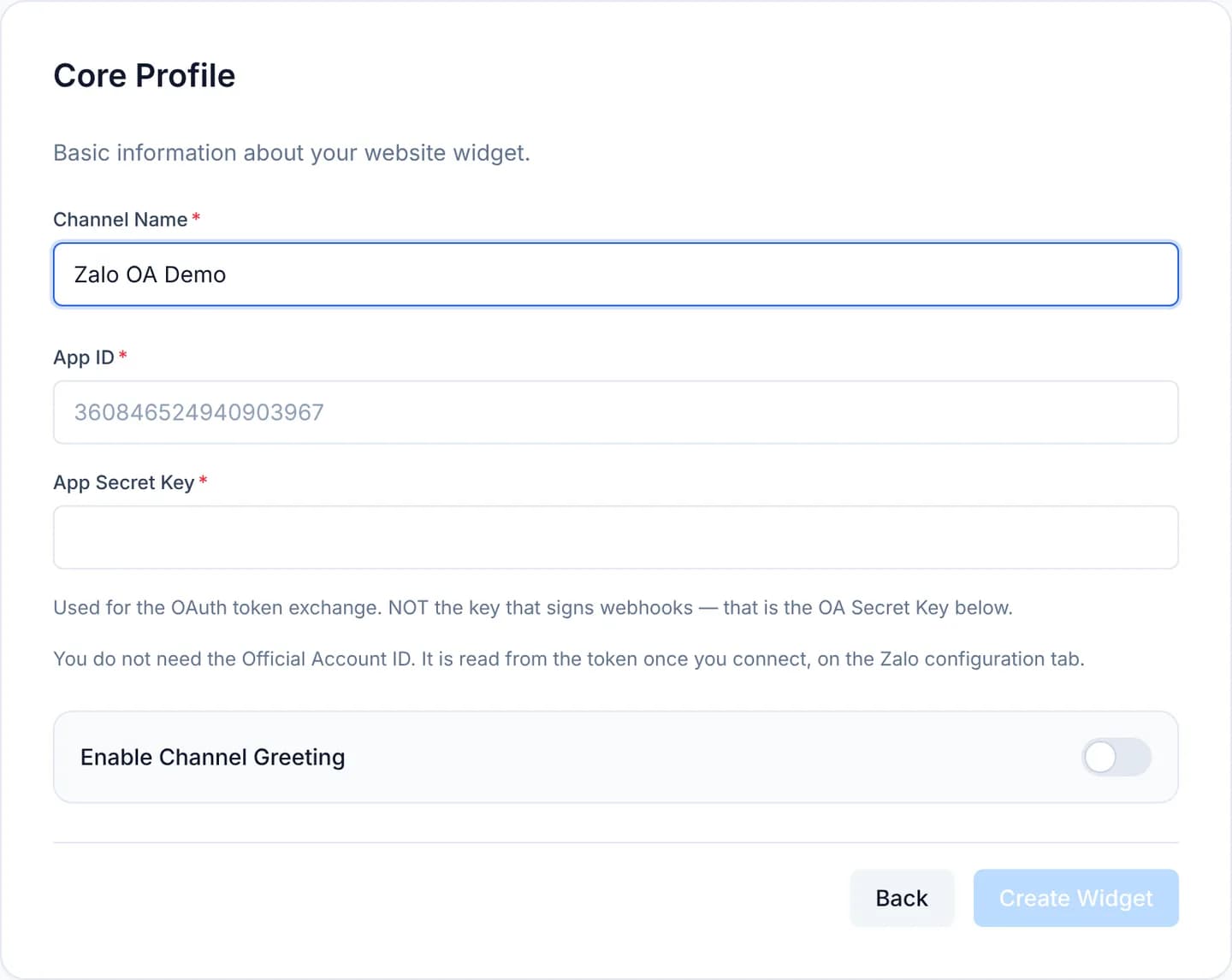
Press Create Widget. The Success! screen shows a Webhook URL; press Copy.
Paste that URL into the Webhook settings of your app on developers.zalo.me, then enable the message events you want to receive.
Return to the Channels list, open the new channel and select the Zalo OA Configuration tab.
Fill in the OA Secret Key and press Save Settings. Zalo signs every webhook event with this key, which is not the App Secret Key above.
Under Access token, press Generate code challenge. Register the Callback URL and the Code challenge on your app's settings page.
Send the permission URL Zalo generates to the OA administrator. Once they approve, Zalo redirects back and the token pair is stored for you.
The second route, for when you run both the app and the OA: take a refresh token from the API Explorer, paste it under Cách 2 and press Connect.
A Zalo access token lives 25 hours and is renewed before it expires. Its refresh token is single-use, rotates on every renewal, and expires after three months. An Official Account left idle longer than that loses the pair outright, and you have to authorise again from step seven.
Zalo enforces a messaging window. A consultation message may be sent only within seven days of the customer's last interaction with the OA, and never to somebody who has never interacted. Outside that window an older conversation stays open in the queue while no reply can leave it.
Verify
On the Zalo OA Configuration tab, the badge under Access token has to read Valid, followed by an Expires line with a real timestamp. The Official Account ID field has filled itself in too.
Send the OA a message from the Zalo app. It has to appear in the Conversations queue, and a reply written in the console has to reach the customer's handset.
Troubleshooting
| Symptom | Cause | What to do |
|---|---|---|
| The badge reads Error with a sentence from Zalo | The refresh token is dead or was spent elsewhere | Fetch a new refresh token and press Connect |
| The badge stays Not connected after approval | Approval never finished, or the callback points elsewhere | Check the Callback URL on the app page and authorise again |
| Customers write, the queue stays empty | The OA Secret Key is missing, so inbound events fail signature checks | Enter the key and press Save Settings |
| Approval fails right after generating a new challenge | The app page still carries the previous challenge | Register the new value on developers.zalo.me |
| A send fails: no interaction in the past seven days | The messaging window has closed | Wait for the customer to write; the console cannot reopen it |
| A send fails: the person does not follow the Official Account | They never subscribed to the OA | Invite them to follow the OA, then write again |
| A send fails between 22:00 and 06:00 | Zalo blocks that message type overnight | Send again after 06:00 |
Next steps
Connect a Facebook Page
Attach a Facebook Page to your workspace with the console's sign-in button, pick the Page from the list, then verify it with Facebook's own answer.
Connect a Telegram bot
Create a bot with @BotFather, paste its token into the console, then check the webhook the server registers on your behalf for the new Telegram channel.