Connect an IMAP/SMTP mailbox
Attach an IMAP/SMTP mailbox to the CloudFly Helpdesk console: let it guess the servers, correct the ports and TLS, then test before you sign in.
The console reads and sends mail over IMAP/SMTP under Email. A mailbox is connected there, not in the channel wizard: the Choose a channel screen has no email tile.
Goal
A mailbox connected inside the console, so you can read incoming mail and send replies without leaving your working window.
Before you begin
- The address and the password of that mailbox.
- An app password, if the provider requires one. Where it does, an account password is always refused.
- The IMAP and SMTP host names and ports, in case the guess from your domain is wrong.
- A mail server on a public address. Internal addresses are refused server-side.
This mailbox belongs to one person, not to the team. It creates no conversations in the shared queue and never appears in the Channels list. Colleagues cannot read your mail, and the administrator role does not open anybody else's mailbox either.
Steps
Press Email in the left column. With no mailbox connected the screen reads No mailbox connected.
Press Connect a mailbox. The connection form opens inside the content area.
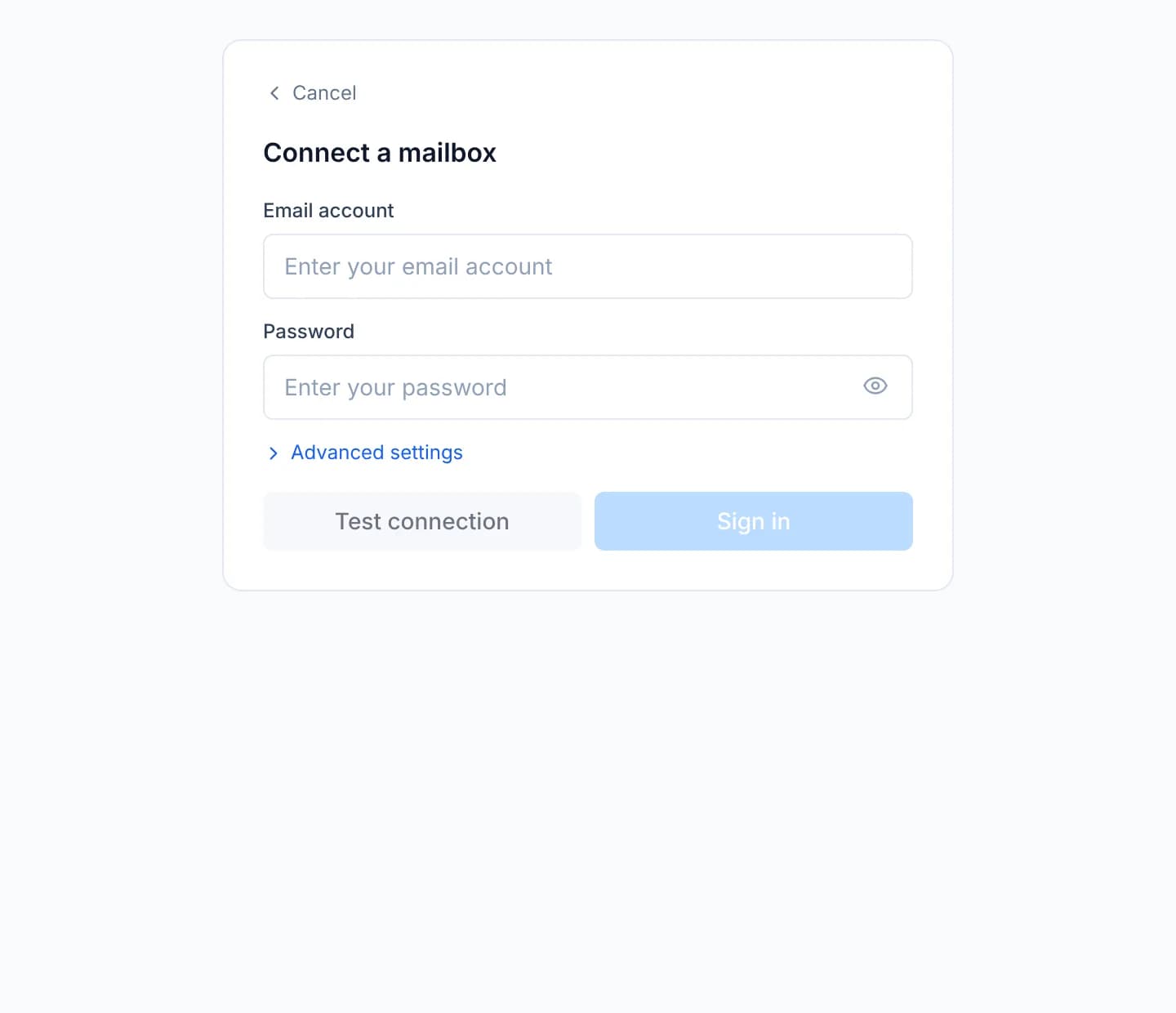
Type the address into Email account. The console guesses the servers from your domain and says outright that it is a guess.
Type the password into Password. Where a provider requires an app password, pasting that app password here is the only route in.
If the guess is wrong, open Advanced settings and correct Incoming server, IMAP port, Outgoing server and SMTP port.
Set the two Use TLS switches to match the ports: on for 993 and 465, off for 143 and 587.
Fill in Username if the provider wants something other than the address, and Display name for the name on the mail you send.
Press Test connection. The Incoming (IMAP) and Outgoing (SMTP) lines report each direction separately.
With both lines passing, press Sign in. The console opens the mailbox and starts syncing.
Mail sync runs in a background process and may be enabled on exactly one
process, through the MAIL_SYNC_ENABLED environment variable. Scale the
API service without honouring that and several processes log into the same
mailbox every minute. This is an operations concern, described in the
installation's README.md.
Verify
After Sign in, the mailbox's folder tree appears down the left of the Email section, and inbox mail starts arriving within a few minutes.
Send yourself a message from that mailbox with the compose button. Its leaving proves SMTP works; its arrival back in the inbox proves IMAP does.
Troubleshooting
| Symptom | Cause | What to do |
|---|---|---|
| The server rejected this username and password | The provider requires an app password | Create an app password and paste it into Password |
| That server name does not resolve | A typo in a host under Advanced settings | Check the host name character by character |
| That address is not reachable from this server | The host resolves to a private network, refused on purpose | Use the provider's public host name |
| Nothing is listening on that port | The port number is wrong | Set 993 or 143 for IMAP, 465 or 587 for SMTP |
| The port and the TLS setting disagree | A Use TLS switch contradicts its port | Turn TLS on for 993 and 465, off for 143 and 587 |
| Connected, but no mail ever arrives | Sync is enabled on no process at all | Ask the deployer to set MAIL_SYNC_ENABLED on exactly one process |
| A colleague's mailbox is nowhere to be found | A mailbox is tied to one person by design | Ask that person to forward what the team has to handle |
Next steps
Connect a Telegram bot
Create a bot with @BotFather, paste its token into the console, then check the webhook the server registers on your behalf for the new Telegram channel.
Spot and fix a disconnected channel
Recognise a channel that stopped receiving from the badge in the channel list, ask the third party directly with the check button, then reconnect its own way.