Organize mail with folders, labels and flags
Build your own folders inside a mailbox, apply coloured labels to messages, and use the Flagged view to gather the mail you mean to come back to.
The left column of Email carries three different sorting tools: a folder is where a message sits, a label is something it carries, a flag is your own mark on it. This page uses all three.
Goal
A mailbox with folders of your own, important mail wearing a coloured label, and everything you mean to return to gathered into one view.
Before you begin
- A mailbox connected under Email — see Connect an IMAP/SMTP mailbox.
- Folders and labels are created on the mail server itself, not only inside the console.
- They therefore appear in any other mail app open on that mailbox, and deleting one removes it in both places.
- Each mailbox has its own folder tree and its own labels; switching mailboxes changes both.
Steps
Open Email. The Folders tree keeps a fixed order: Inbox, Flagged, Drafts, Sent, Archive, Trash, Spam, All mail.
Press Folder options beside the word Folders, choose New folder, type a Folder name and press Enter. The new folder sits below the fixed group.
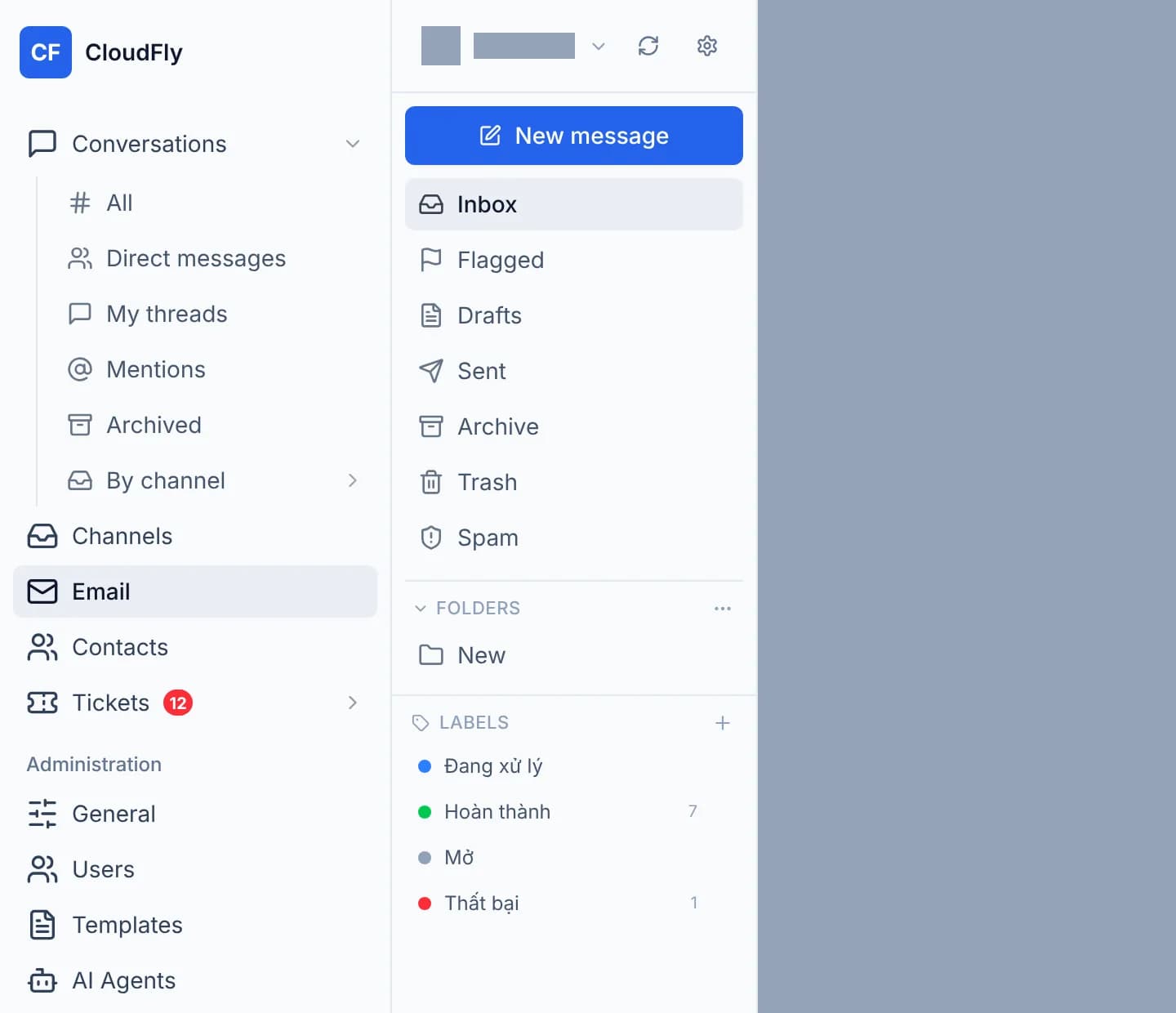
Drag a message out of the middle list and drop it on that folder. The console reports 1 message moved.
For several messages, tick the box at the start of each row — the toolbar above the list unlocks — then press Move to and pick the destination folder.
Rename or remove a folder with Rename folder and Delete folder in the same menu. Deleting takes every message inside it, happens on the mail server and cannot be undone from here.
Go down to Labels, press the plus marked New label, type a Label name, pick a colour and press the tick.
Select a few messages, press Labels on that toolbar and tick the label you want. The console reports Label added to 2 messages for the rows you chose.
Press a label name in the left column to see every message carrying it across the mailbox. Press it again to return to Inbox.
Flag a message with the Flag button that appears when you hover a row, then open Flagged to see everything currently flagged.
Verify
The new folder is in the tree, and opening it shows the messages you dragged across. A label appears as a coloured dot in the left column with a count beside it, and as a coloured chip on each row in the list.
Open Flagged: it gathers the messages you flagged, including one sitting in Sent. Cross-check in another mail app on the same mailbox — the new folder and label are there too.
Troubleshooting
| Symptom | Cause | What to do |
|---|---|---|
| Another mail app has no Flagged folder | It is a view built from the flag on each message, not a folder on the server | Nothing to do; the messages stay where they were |
| A label shows up elsewhere as an odd keyword | Labels are stored as IMAP keywords | Keep label names short, with no stray spaces |
| Deleting the label you were viewing sends you to Inbox | The view behind that label no longer exists | Working as designed, not a fault |
| Drafts and Sent offer no mark-read or Archive button | Those two folders accept only flagging and deletion | Use Move to if a message has to go elsewhere |
| Deleting inside Trash asks about Delete permanently | In the bin, deletion removes the message on the mail server | Read the dialog; there is no way back |
| A folder you created is nowhere to be seen | The mail server refused the name, usually over a special character | Press Refresh and create it again with a plainer name |
Next steps
Add a second mailbox to the Email section
Attach another IMAP/SMTP mailbox to your own account, move between the mailboxes you have, and read the status badge each one carries.
The chat widget on your website
Four pages that configure the CloudFly Helpdesk chat widget: paste the embed snippet, restyle it, decide how visitors identify themselves, add other channels.