Add a second mailbox to the Email section
Attach another IMAP/SMTP mailbox to your own account, move between the mailboxes you have, and read the status badge each one carries.
One console account can hold several IMAP/SMTP mailboxes at the same time. This page adds the second one from the Email screen itself and points at where the health of each mailbox is shown.
Goal
Two or more mailboxes sitting in Email, reached through the picker at the top of the folder column, each carrying a status of its own.
Before you begin
- One mailbox already connected. Without one, start at Connect an IMAP/SMTP mailbox.
- The address and password of the second mailbox, plus an app password where the provider demands one.
- Any role can connect a mailbox of their own; this is not an administrative task.
- What each field of the connection form means is on the page linked above, and is not repeated here.
Steps
Press Email in the left column, then the gear labelled Settings at the top of the folder column.
The console lists the mailboxes you have connected, each row with a status badge and a Disconnect button.
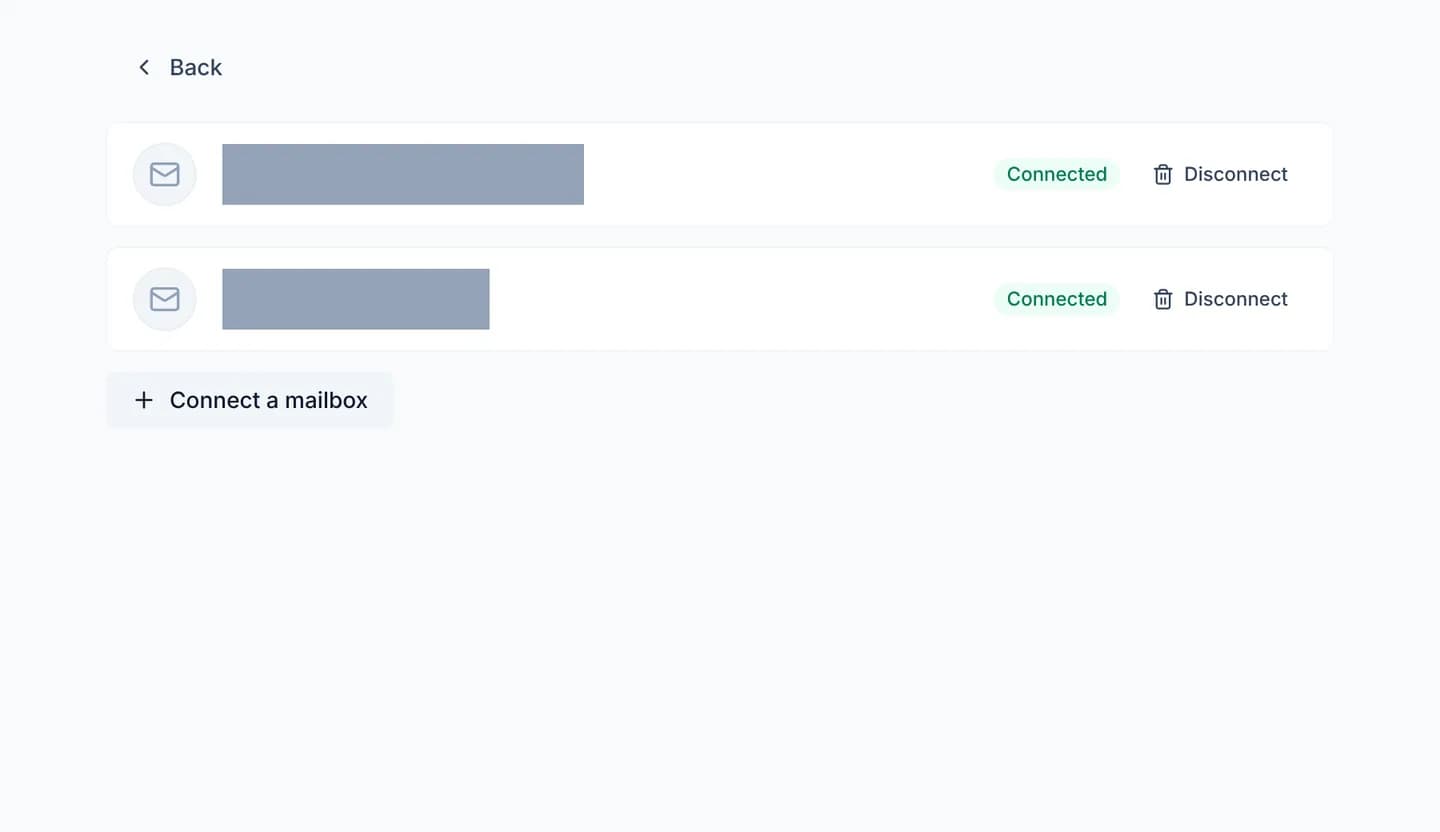
Press Connect a mailbox at the foot of the list. The connection form opens in place.
Fill in the address and the password, press Test connection, then press Sign in once both directions pass.
The console reports Mailbox connected and opens the mailbox you added.
Press the mailbox name at the top of the folder column. The Mailbox picker lists each mailbox with its unread count, and ticks the one that is open.
Pick the other mailbox to go back. The picker appears only from two mailboxes onwards; with one, that spot prints the address instead.
Do not expect your filters to follow: the search box, the label filter and the Unread chip belong to the mailbox you left, so the console leaves them there.
Verify
The Mailbox picker lists both addresses. On the gear screen, the new mailbox carries Waiting for first sync and turns to Connected once the first sync run finishes.
Open the new mailbox: its folder tree appears and mail starts landing in Inbox. The unread count beside its name in the picker climbs with it.
Mail is pulled in only while the MAIL_SYNC_ENABLED environment variable is
on — and on exactly one api-engine process, not on all of them. This
belongs to whoever runs the deployment; the README.md file in the source
tree lists this variable alongside the other operational ones.
Troubleshooting
| Symptom | Cause | What to do |
|---|---|---|
| You have already connected this mailbox. | That address is on your list already | Close the form and open it from the Mailbox picker |
| The new mailbox stays on Waiting for first sync | No process is running the fetch loop | Ask whoever runs the deployment to check MAIL_SYNC_ENABLED |
| A Password rejected badge | The mail server stopped accepting the credentials, usually after a password change | Press Disconnect and connect again with the new password; there is no in-place password field |
| A Connection problem or Paused badge | The mail server is not answering, or syncing was stopped for that mailbox | Press Refresh; if it persists, check the provider's own mail server |
| Disconnect pressed by mistake | It drops the synced mail from the console; nothing is removed on the mail server | Connect the mailbox again and let it sync from scratch |
| A message that the server is not configured to store mail credentials | The deployment has no MAIL_CRED_KEY encryption key set | Ask an administrator to set that key, then retry |
Next steps
Read and send email in the console
The Email section is your own mail reader inside the console: three panes for folders, the message list and the message itself, plus a compose button.
Organize mail with folders, labels and flags
Build your own folders inside a mailbox, apply coloured labels to messages, and use the Flagged view to gather the mail you mean to come back to.