Sign in and find your way around
Reach the CloudFly Helpdesk console for the first time with your own account, then name the three regions on screen: navigation, queue and message timeline.
This is the first thing everyone on a support team does. The page walks through the sign-in card and names the three regions you will look at all day.
Goal
Reach the console with your own account, and know which part of the screen is the queue and which part is the conversation you have open.
Before you begin
- The console address of your workspace, in the form
https://<your-domain>. - An account an administrator created for you, with the starting password that person set.
- A desktop browser. The pictures here were taken at a wide viewport.
- Every role can sign in. What you may write once inside is a separate question, answered in Roles and per-feature permissions.
Steps
Open https://<your-domain>/login in a browser. The CloudFly Agent Console
card appears in the middle of the screen.
Type your work address into Email, then your password into Password.
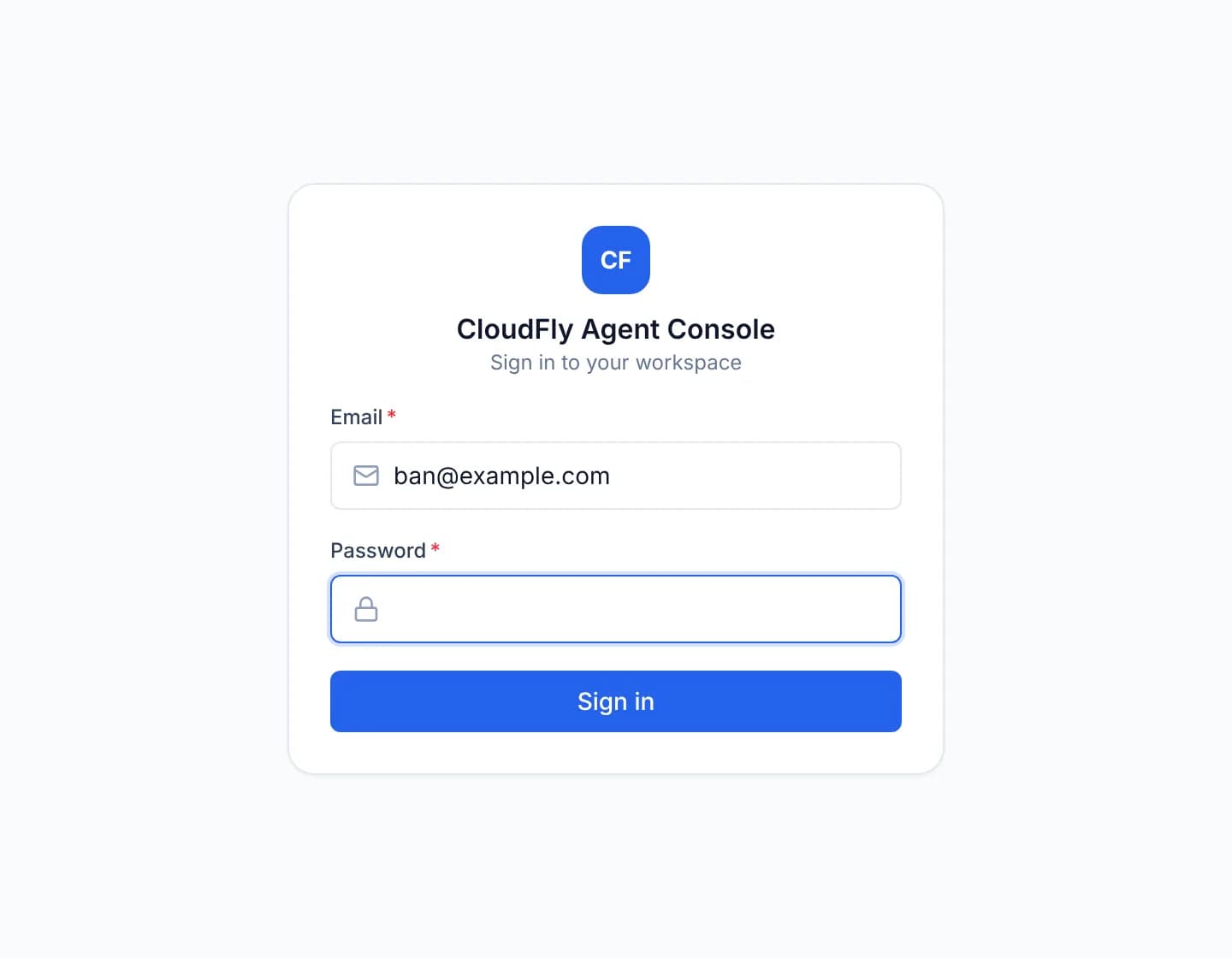
Press Sign in. Wrong credentials produce Login failed and leave you on the card.
The console opens on Conversations. Nothing is selected yet, so the right side reads Select a conversation.
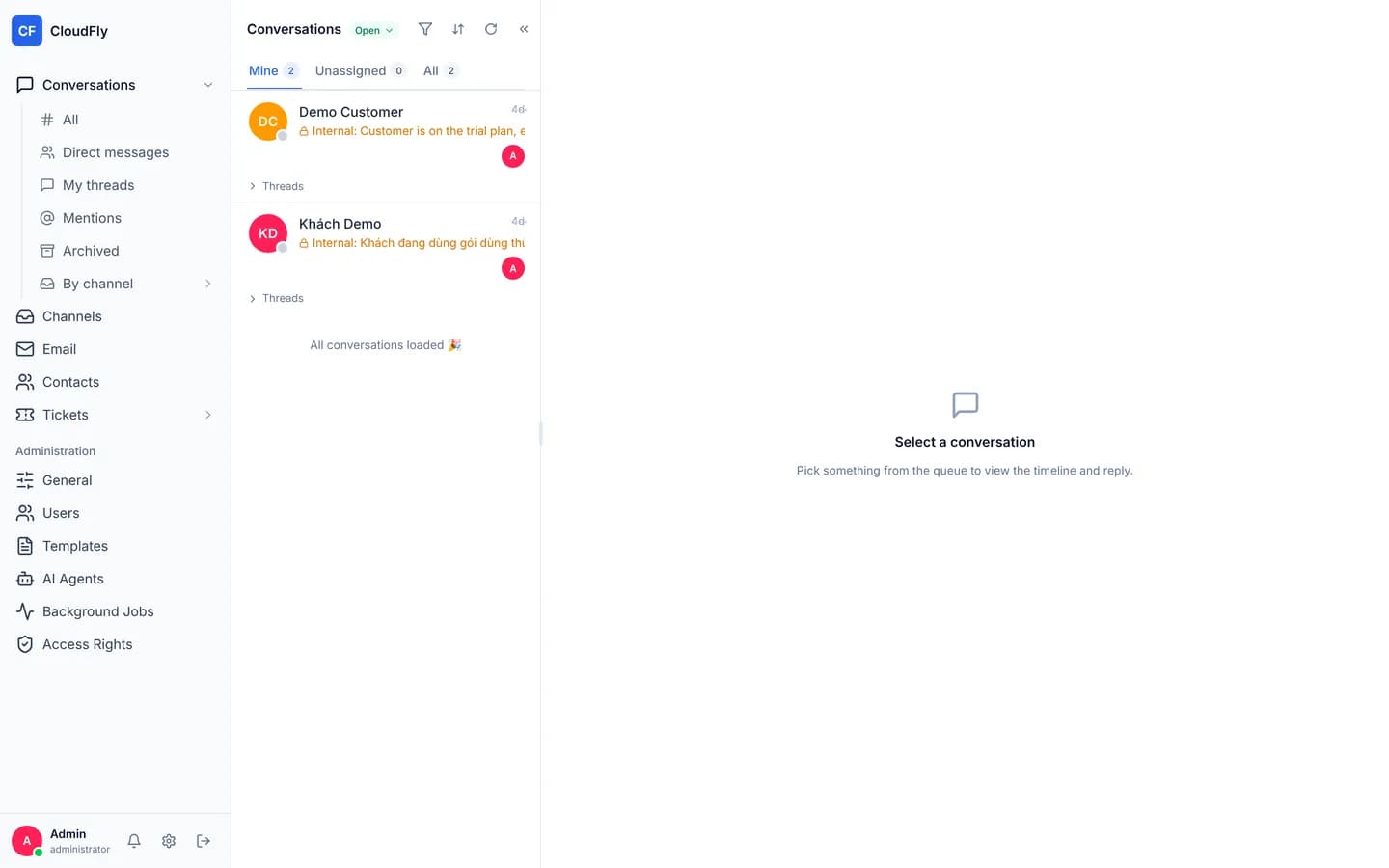
Read the left column from the top: Conversations, Channels, Email, Contacts, Tickets. An administrator also sees the Administration group below them.
Look at the middle column. The Mine, Unassigned and All tabs cut one queue by who owns each row, and each carries a count.
Click a row in the queue. The timeline opens, and the CONTACT INFO panel appears along the right edge above the CONVERSATION block.
Verify
The foot of the left column shows the signed-in account name with its role beside the notification bell. That is the sign that the session belongs to the right person. Switch to the All tab in the queue: the count next to the tab matches the number of rows listed under it.
Troubleshooting
| Symptom | Cause | What to do |
|---|---|---|
| Login failed appears | The address or the password is wrong | Ask an administrator to reset it from the Users screen |
| You are in, but the queue is empty | No channel is pouring conversations into the workspace yet | Continue with Create your first channel |
| The Administration group is absent | The account carries the agent role | Working as designed, not a broken configuration |
| The sign-in page reloads itself | An older session expired in another tab | Close the other console tabs and sign in again |
Next steps
Getting started with CloudFly Helpdesk
Four pages that take a new CloudFly Helpdesk workspace from the first sign-in to the first answered conversation and a second person on the team.
Create your first channel
Build your first channel as a website widget: name it, list the domains allowed to embed it, pick the display options, then collect the embed snippet.