Link two records as one person
Declare that two contact records are one customer, so staff read one shared history — and undo it when the call was wrong, because a person made it.
A customer who writes from Facebook and then from Zalo has two records, and no data says they are one human. This page shows how to say it yourself, and how to take it back.
Goal
Once linked, every operator who opens this person's conversation sees the history of both records, with the name and email of each one alongside it.
Before you begin
- An account that may write in conversations. An administrator always may; for the other roles, see Roles and per-feature permissions.
- One conversation from that person you can open under Conversations. The linking block sits in the conversation's information panel, not on the Contacts page.
- Evidence of your own: something the customer said, a matching phone number, a shared order. The system does not check this for you.
Steps
Open Conversations and open a conversation from that person. The right-hand panel opens on the Contact tab.
In the Contact Info card, scroll to the Linked records block. The block is always drawn, even when nothing is linked yet.
Press Link a record. A search box opens, with a Might be the same person list underneath it.
Read the badge at the end of each suggestion: same phone, same email or same name. It says why the system named that record, and a shared phone number is the strongest of the three.
When no suggestion fits, type into Search by name, email or phone…. Accents
are ignored, so nguyen van a finds a record named "Nguyễn Văn A".
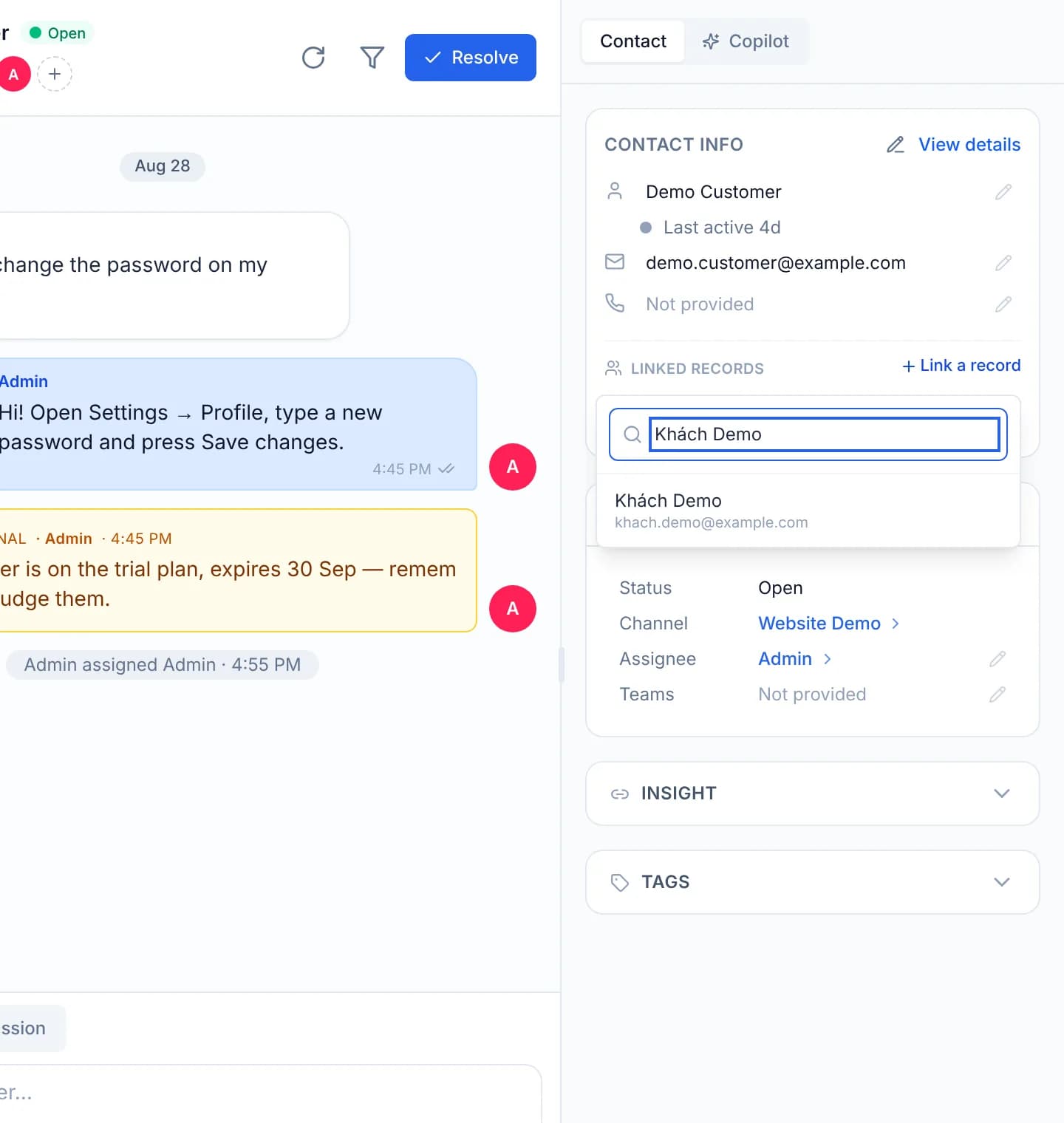
Click the row for the right person. That record appears in the Linked records block, with the name of the channel it arrived on.
Got it wrong? Press the × at the end of the row and confirm in the Not the same person? dialog. The confirm button reads Unlink.
A group, not a set of pairs
Link A to B, then B to C, and A sees C as well: all three sit in one group. Unlinking follows the same shape — take B out from A's panel and B leaves the whole group, while A and C stay linked to each other.
Verify
The Linked records block shows the record you linked, with a count beside the label. Open the Other conversations block below it: it lists the other record's conversations too, each row carrying the name and email of the record it belongs to.
Hover or press the History control beside the block label. The top entry carries your name, the name of the record you linked and when it happened. Unlinking is written to the same place.
What a wrong link breaks
One customer's history shows up in another customer's information panel, and a colleague answers from what they read there. Customers see nothing extra: the chat window and the customer portal use their own query, which does not follow links. If in doubt, unlink first and ask afterwards.
Troubleshooting
| Symptom | Cause | What to do |
|---|---|---|
| No Link a record control | The account may not write in conversations | Ask an administrator to grant it, see Roles and per-feature permissions |
| The suggestion list is empty | Facebook and Zalo hand over neither a real email nor a real phone number | Type the customer's name into the search box |
| The record you linked vanishes from suggestions | An already-linked record is excluded from the candidate list | Working as designed; find it in Linked records |
| Two other records stay attached after an unlink | Unlinking removes one record from the group and leaves the rest of it standing | Unlink the remaining records one at a time |
Next steps
Managing contacts
Customer records live under Contacts. This section covers linking two records that are one person, duplicate records, and messaging a customer first.
Merge two duplicate contacts
Absorb a duplicate record into the contact you are looking at, on the Merge tab. The record you pick is deleted for good, so a confirm box comes first.